
LG UltraFine 6K
3.9Editor score
Native 6K resolution
Broad professional color coverage
Thunderbolt 5 connectivity
A monitor for retouching must make it easier to judge color, fine detail, shadow texture, and tonal transitions rather than simply fill a desk with pixels. The most useful models combine accurate color, a suitably sharp resolution, capable HDR, comfortable viewing, and reliable connectivity for photography, video, design, and 3D work.
We compared all ten monitors using the supplied specifications, focusing on resolution, panel technology, color coverage, calibration information, refresh rate, response time, HDR capability, ports, stands, eye-comfort features, and practical value. The list includes premium creator displays, OLED and fast IPS models, and more affordable screens for general creative work.
Each review explains where a monitor stands out and where its specification sheet reveals limitations. Ratings and details reflect the supplied product information, while product availability and pricing can change, so readers should confirm current specifications and costs before making a final purchase.
3.9Editor score

4.7Editor score
4.5Editor score
As an Amazon Associate we earn from qualifying purchases.
The comparison below places resolution, panel type, color performance, and motion specifications side by side, helping creative users identify the monitor that best matches their software, hardware, and display requirements.




The ASUS ROG XG27AQDMGR combines a 26.5-inch QHD TrueBlack Glossy WOLED panel with a 240Hz refresh rate and 0.03ms response time. Its supplied rating is 4.6, and the standout creative feature is the combination of 99% DCI-P3 gamut coverage, true 10-bit color, and a stated Delta E below two. Those specifications make it unusually compelling for retouching when accurate color and smooth operation are both important.
We may earn a commission when you buy through this link, at no additional cost to you.
Color depth is particularly relevant to portrait work, product photography, illustration, and video grading. True 10-bit output can represent subtle tonal steps more effectively than an 8-bit signal, while the wide DCI-P3 coverage provides room for work involving saturated media. HDR10 is handled through VESA DisplayHDR 400 True Black compliance, giving the display useful highlight and shadow range without requiring the higher brightness associated with more expensive premium reference-class screens.
The glossy finish is the most obvious compromise because reflections can be distracting in a brightly lit studio. Its QHD resolution also means that a 27-class image is spread across fewer pixels than it would be on a 4K or 6K model. However, the exceptionally fast motion performance, wide color specification, OLED Care Pro system, Neo Proximity Sensor, and ASUS DisplayWidget Center controls make this more than a basic creative display. The bundled three-year warranty and burn-in coverage also strengthen the proposition for long-term creative use.
This monitor is a strong choice for editors who want saturated color, deep blacks, high refresh rates, and 10-bit output without moving to a six-figure professional reference display. It is especially suitable for mixed gaming and creative workflows. Buyers who need maximum text resolution or work under bright overhead lighting should examine a matte 4K IPS alternative, but for color-rich, fluid retouching this is one of the most compelling options in the list.
The 99% DCI-P3 coverage and factory-stated Delta E below two offer a persuasive foundation for judging skin tones, product colors, and graded footage. True 10-bit output further supports smooth tonal transitions in images with subtle gradients.
ASUS OLED Care Pro and the Neo Proximity Sensor can switch the display to a black screen when the user leaves, reducing the risk of burn-in. DisplayWidget Center also makes the protection functions and other settings easier to manage.
We may earn a commission when you buy through this link, at no additional cost to you.
The Samsung Odyssey OLED G6 earns the highest supplied user rating in this group at 4.7. Its 27-inch QD-OLED panel combines QHD resolution, a 240Hz refresh rate, and 0.03ms response time, but the feature that matters most to retouchers is Pantone validation. The screen is stated to reproduce more than 2,100 lifelike colors and 110-plus skin-tone shades, making it an attractive choice for portrait and commercial color work.
We may earn a commission when you buy through this link, at no additional cost to you.
Samsung combines that color validation with HDR10 support, a high-brightness QD-OLED panel, and OLED Safeguard thermal modulation designed to help prevent burn-in. Glare Free Technology is another meaningful benefit for users working in rooms where reflections would otherwise interfere with accurate visual evaluation. The 240Hz refresh rate and AMD FreeSync Premium support also make the display pleasant for mixed workflows that include animation, interactive design, or gaming.
The principal limitation is its 1440p pixel count. A 27-inch QHD display offers more physical workspace than a Full HD screen, yet it does not offer the fine detail of the 4K Samsung ViewFinity S7, ASUS ProArt PA279CV, or 6K LG UltraFine. HDR10 support also lacks the metadata and refinement associated with HDR10+, although that does not prevent the screen from presenting a strong HDR workflow. The supplied information does not specify a numerical brightness or contrast rating, so exact HDR performance should be judged from the final product experience.
For creators who value rich color, validated skin tones, a fast panel, and reduced reflections, the G6 is one of the most attractive options here. It is particularly well suited to portrait retouching, fashion imagery, and video-focused color work. Those who spend most of their time pixel-peeping at 100 percent should give a 4K or 6K model priority, while motion-oriented users will appreciate the speed.
Reproduction of more than 2,100 colors and over 110 skin-tone shades gives retouchers a more consistent basis for evaluating complex color relationships. It does not replace a calibrated workflow, but it makes the display particularly relevant to portrait work.
The 240Hz refresh rate, 0.03ms response time, and FreeSync Premium support keep motion fluid. That helps when working with animated previews, navigating timelines, or moving between detailed image and video projects.
We may earn a commission when you buy through this link, at no additional cost to you.
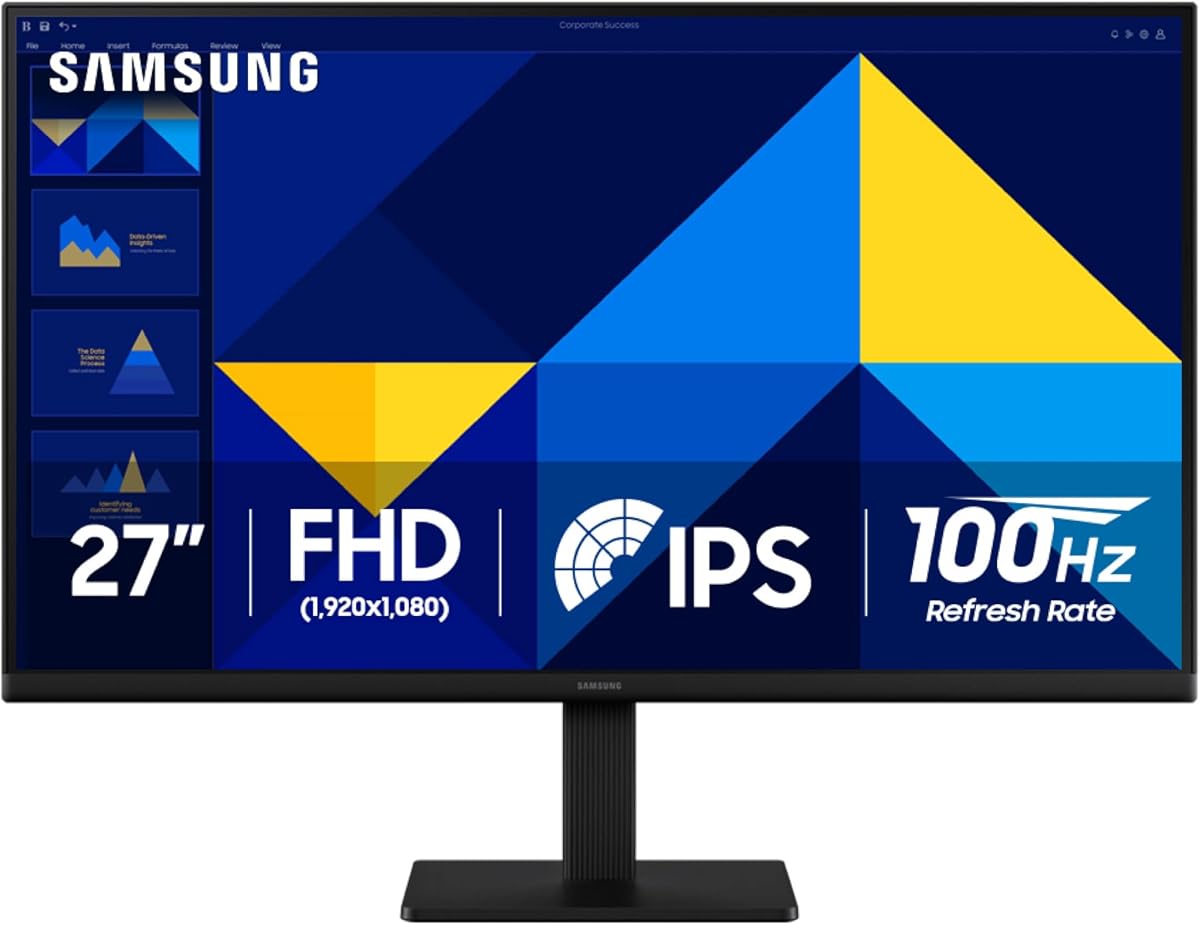
The Samsung S30GD Essential Monitor offers the most approachable route into this roundup. It uses a 27-inch IPS panel described as delivering vivid, consistent colors across the screen and at different viewing angles. Its supplied rating is 4.5, while a 100Hz refresh rate adds a useful degree of fluidity for everyday creative applications without moving into costly high-refresh territory.
We may earn a commission when you buy through this link, at no additional cost to you.
For retouching, IPS consistency and broad viewing angles are valuable because they make it easier to share a screen with a client or colleague without the image changing dramatically as the viewing position changes. The monitor also includes reduced-blue-light and flicker-reduction features, Game Mode, and adjustable color and contrast settings. Its slim bezel design keeps the workspace visually uncluttered, which can help a compact desk feel more organized.
The supplied information does not state a color-space coverage figure, calibration result, brightness rating, or HDR support. That means the monitor cannot be compared directly with the 99% DCI-P3 ASUS ROG, the Pantone-validated Samsung OLED, or the factory-calibrated ASUS ProArt on advanced color specifications. It is best positioned as a straightforward creative and productivity display rather than a specialist reference monitor. Its 100Hz refresh rate also delivers less fluid motion than the faster gaming-oriented choices.
This Samsung is a sensible recommendation for students, general-purpose retouchers, and professionals building a capable first editing setup. It provides a modern IPS panel, useful eye-comfort features, and smooth-enough motion without overwhelming the budget. Users producing demanding commercial campaigns or requiring certified color accuracy should save their allowance for a model with documented gamut coverage or factory calibration.
The panel is designed to maintain bright, clear colors across the screen and away from the center. That makes it easier to judge a retouched image while leaning toward a client or moving around a desk.
Reduced blue light and screen-flicker features support longer sessions, while the 100Hz rate reduces lag and motion blur during media playback, editing, and other active tasks.
We may earn a commission when you buy through this link, at no additional cost to you.
The Samsung ViewFinity S7 prioritizes resolution and practical productivity, making it a strong option for retouchers who work with detailed compositions. Its 27-inch IPS display provides 3840 by 2160 pixels, while the supplied 4.6 rating indicates generally favorable user feedback. The screen is also designed for complex diagrams, intricate designs, and dynamic video content, all of which translate well to detailed image editing.
We may earn a commission when you buy through this link, at no additional cost to you.
HDR10 support is stated to optimize contrast using darker blacks, brighter highlights, and a gamut of more than one billion accurate colors. That makes the monitor better suited to general color work and HDR-aware content than a basic business display, although the absence of a detailed calibration statement prevents it from being categorized as a color-accurate reference monitor. HDMI and DisplayPort connections simplify a professional desk and leave room for multiple source devices.
Eye Saver Mode is certified by TÜV and works to minimize blue light and screen flickering during long sessions. Game Mode can also adjust color and contrast for clearer scenes. On the other hand, the supplied data does not list the refresh rate, peak brightness, measured contrast, or specific sRGB and DCI-P3 percentages. Buyers who need gaming-level motion performance or a formally documented color calibration should investigate those details.
The ViewFinity S7 is a compelling general-purpose 4K option for photo retouching, web design, illustration, and video editing. Its high pixel density gives editors more room to inspect small features without immediately requiring the extraordinary resolution of a 6K professional display. It is a particularly good match for users who want more detail and HDR capability than the Essential monitor but do not need the OLED motion performance of the higher-ranked gaming models.
The 3840 by 2160 resolution delivers substantially greater pixel density than a QHD display. That extra detail is useful when refining small features, checking typography, or arranging multiple creative tools on screen.
HDR10 expands contrast and color range, while TÜV-certified Eye Saver Mode addresses blue light and flicker. Together they support a more capable and comfortable long-session workflow.
We may earn a commission when you buy through this link, at no additional cost to you.
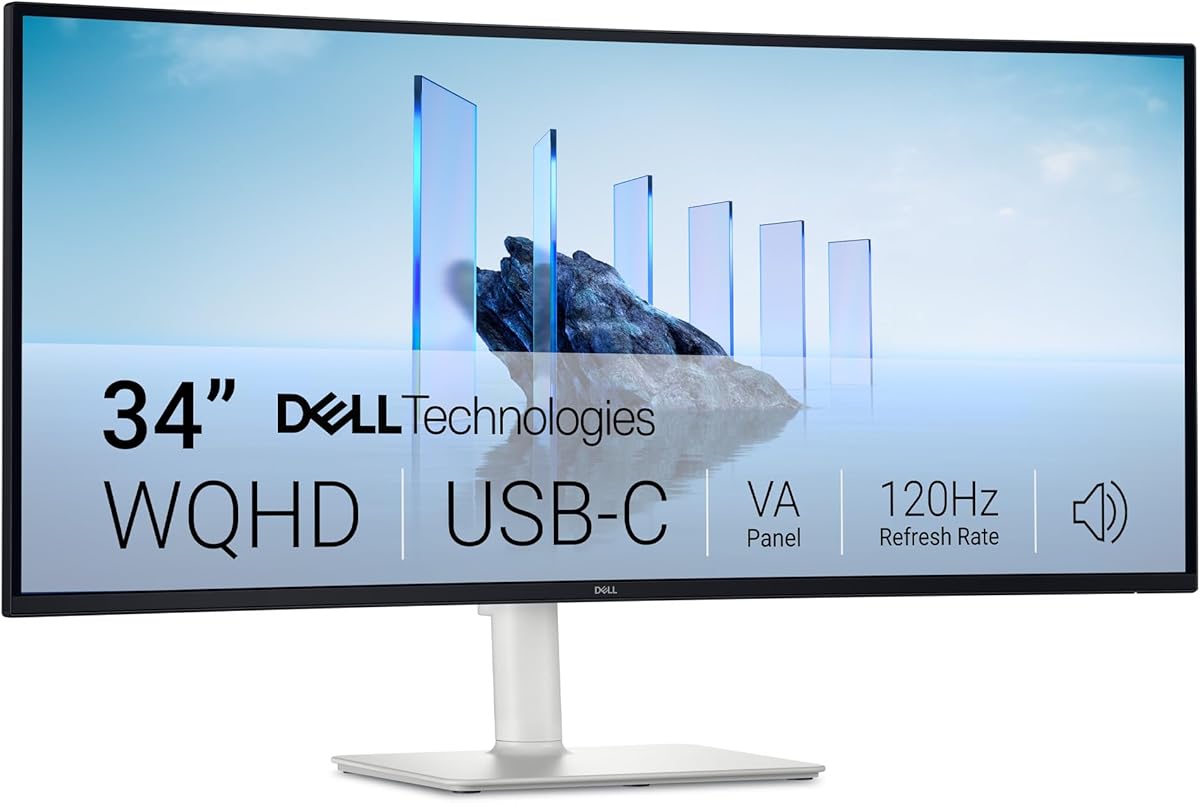
The Dell S3425DW uses its 34-inch size to create a more expansive creative workspace. At WQHD resolution, the extra width makes it useful for arranging an image beside adjustment panels, reference images, or video timelines. It combines a VA panel with 120Hz refresh, AMD FreeSync Premium, and an ultra-low stated 0.03ms response time, and its supplied rating is 4.4.
We may earn a commission when you buy through this link, at no additional cost to you.
Color specifications are a major strength. The display covers 99% sRGB and 95% DCI-P3, offers a 3000:1 native contrast ratio, and is described as HDR ready. The deep contrast can make dark areas feel more dimensional, which is valuable for moodier portrait and product work. It also incorporates improved built-in sound with greater output power, deeper frequency response, and a wider decibel range than the preceding generation.
Connectivity is unusually convenient: a single USB-C cable can handle display connection and up to 65W of power delivery. That can simplify a laptop-centered editing setup and keep the desk less cluttered. As a VA panel, however, it may exhibit slower dark-to-bright transitions than fast IPS or OLED models, making the stated 0.03ms figure worth considering alongside the panel technology. No factory calibration result or detailed brightness figure is included in the supplied data.
Choose the S3425DW when workspace area and convenient connectivity matter more than having a very high pixel density. It fits multi-window productivity, broad color work, and media-heavy creative stations. For fine pixel-level retouching, a 4K or 6K screen offers greater detail, but this Dell provides a balanced and spacious alternative with strong gamut coverage and a modern single-cable workflow.
A 34-inch WQHD canvas gives editors room to keep a photo or frame visible while opening layers, curves, masks, and reference material. This improves workflow efficiency without requiring a multi-monitor arrangement.
Supporting up to 65W over one USB-C connection can reduce cable clutter and simplify a laptop-based workspace. The display can therefore function as a more practical centerpiece for daily creative work.
We may earn a commission when you buy through this link, at no additional cost to you.
The LG UltraFine 6K is the most specialized monitor in this guide. Its native 6144 by 3456 resolution produces 224 pixels per inch across a 32-inch panel, packing more than 21 million pixels into the workspace. The supplied rating is 3.9, lower than those of the other products, but the underlying specifications clearly target professional photographers, editors, 3D artists, designers, and other creators who work at very high resolution.
We may earn a commission when you buy through this link, at no additional cost to you.
Color capability is central to the design. The Nano IPS Black panel covers up to 99.5% Adobe RGB, 98% DCI-P3, and uses real 10-bit color depth. DisplayHDR 600 promises brighter highlights, stronger contrast, and a wider range of visible nuance than ordinary HDR10 displays, while the stated 2000:1 contrast ratio is designed to preserve shadow detail. Together, these features make the monitor highly relevant to photo retouching, color grading, and 3D rendering.
Thunderbolt 5 adds fast data transfer, 96W power delivery, DisplayPort 2.1 support, and daisy-chain capability. A single cable can connect a compatible computer while allowing multiple displays to be chained, and USB Type-C, HDMI, DisplayPort, and USB connections provide flexibility across Mac and Windows systems. The trade-off is a 60Hz refresh rate, which is modest compared with the gaming-focused monitors and may feel less fluid during certain interactive tasks.
This is the premier choice for creators who routinely inspect 6K photography or video, need broad Adobe RGB coverage, and value one-cable professional connectivity. The lower supplied rating and 60Hz rate are reasons to inspect owner feedback carefully, but they do not erase the value of its extraordinary resolution. Buyers should evaluate desk space, software demands, and the cost of premium hardware before committing.
The 6K panel can display 6K editing timelines and high-resolution images at their native pixel count. Its 224 PPI density also keeps small interface elements and image details sharply defined during precise adjustments.
Wide Adobe RGB and DCI-P3 coverage, 10-bit color, DisplayHDR 600, and a 2000:1 contrast ratio provide a strong foundation for high-fidelity color work. The 2000:1 ratio is particularly useful for preserving visible detail in dark areas.
We may earn a commission when you buy through this link, at no additional cost to you.
The ASUS TUF VG27AQM5A is built around a 27-inch Fast IPS panel with QHD resolution, an exceptional 300Hz refresh rate, and a stated minimum 0.3ms gray-to-gray response time. Its supplied rating is 4.4. Although gaming is central to its design, the 95% DCI-P3 color coverage and Shadow Boost feature also make it viable for color-rich content creation and photo workflows.
We may earn a commission when you buy through this link, at no additional cost to you.
Motion clarity is the main differentiator. ASUS Extreme Low Motion Blur Sync allows ELMB and variable-refresh-rate technologies to operate together, helping reduce ghosting and tearing. That makes moving between images, scrubbing through animation, or previewing motion graphics feel extremely responsive. Shadow Boost can brighten details in dark areas without over-exposing highlights, a potentially useful function for retouchers evaluating shadow detail.
The monitor includes DisplayWidget Center for adjusting settings with a mouse, along with integrated speakers and a three-year manufacturer warranty. A complimentary three-month Adobe Creative Cloud subscription is also included with an offer valid through the stated date. Color coverage is documented, but there is no factory calibration, Delta E statement, brightness figure, or explicit professional calibration. Users requiring repeatable output should therefore plan to calibrate the display and confirm its behavior in their own environment.
This ASUS is best for a creative professional who also values extremely fluid interaction or plays demanding games on the same display. It delivers wide color and exceptional motion at a QHD pixel count, making it a flexible hybrid. Editors who mainly work at 100 percent magnification and need maximum interface detail should favor a 4K or 6K display instead.
The 300Hz refresh rate and Fast IPS response make cursor movement, canvas navigation, and timeline scrubbing highly immediate. This helps when an editor makes small corrections that require frequent visual feedback.
Shadow Boost can make elements within dark scenes more visible while avoiding excessive brightening elsewhere. It provides a useful starting point for evaluating shadow-heavy retouching, although the final look should be judged carefully.
We may earn a commission when you buy through this link, at no additional cost to you.
The Samsung ViewFinity S6 provides a balanced middle ground for creative work. Its 27-inch QHD panel offers 2560 by 1440 resolution, enough additional space to reveal more detail than Full HD while preserving a more conventional footprint than a 34-inch or 6K model. The supplied rating is 4.3, and a 100Hz refresh rate helps reduce perceived lag during editing and playback.
We may earn a commission when you buy through this link, at no additional cost to you.
The monitor includes a Game Mode for immediate display adjustments, HDMI and DisplayPort connectivity, and an ergonomic stand that supports tilt, pivot, and height adjustment. Eye Saver Mode is certified by TÜV and is designed to reduce eye strain during extended sessions. These details make the S6 easy to live with in a daily workspace, where positioning and comfort may be as important as raw color performance.
The supplied specification list does not state an sRGB or DCI-P3 gamut percentage, contrast ratio, brightness, Delta E result, or calibration status. It also does not mention HDR support. As a result, the ViewFinity S6 is harder to recommend for color-critical work than the Pantone-validated OLED G6, the 95% DCI-P3 ASUS TUF, or the factory-calibrated ASUS ProArt. Its advantages are more general: resolution, comfort, connectivity, and ergonomic flexibility.
The S6 is a good choice for hybrid creative offices, students, and users who want a comfortable QHD display for photo adjustments, graphic design, presentations, and content production. It may serve as a strong secondary screen for previews and asset browsing, though a higher-resolution or more formally specified display is preferable for final color decisions.
QHD resolution provides a noticeable step up from Full HD without demanding the desk space of an ultrawide display. It can show larger interface areas and more of a creative application at once.
Height, pivot, and tilt adjustments make it easier to find a comfortable viewing position. TÜV-certified Eye Saver Mode adds another layer of support for users who spend long periods editing or reviewing media.
We may earn a commission when you buy through this link, at no additional cost to you.
The AOC Q27G41ZE combines a 27-inch QHD IPS panel with high-refresh performance, making it a practical option for editors who also enjoy games. Its title identifies an overclocked 260Hz mode, while the detailed specifications state a 240Hz refresh rate through DisplayPort. The supplied rating is 4.6, and the panel's 0.3ms MPRT keeps fast movement relatively clear.
We may earn a commission when you buy through this link, at no additional cost to you.
Adaptive-Sync support is designed to work across AMD and NVIDIA GPUs, helping reduce tearing and input lag. A 300-nit brightness rating and 1000:1 contrast ratio provide a respectable foundation for general image viewing. Shadow Control, Game Mode presets, and an on-screen display menu offer quick ways to tailor the image, although the supplied data does not list sRGB or DCI-P3 coverage, HDR certification, or factory calibration.
Connectivity includes one DisplayPort 1.4 input, two HDMI 2.0 ports, and audio output. The ergonomic adjustment is limited to a minus-three to plus-21-degree tilt range, so buyers who require height, pivot, or swivel adjustment should verify whether the included stand meets their needs. The three-sided frameless design gives the 27-inch panel a clean appearance, and the textured black-and-red finish clearly identifies it as a gaming-oriented model.
Choose the Q27G41ZE for fluid interactive performance, competitive gaming, and a QHD creative workspace. It is less compelling for specialist color work because the absence of documented gamut and calibration figures leaves fewer objective standards for judging its factory color accuracy. A higher-resolution creator display may serve a dedicated retoucher better, but this AOC is a capable hybrid for everyday editing and entertainment.
A high refresh rate and short MPRT make interactions feel immediate. This is useful for moving around a detailed canvas, previewing animation, or switching among layered files without sluggishness.
DisplayPort 1.4, dual HDMI 2.0, and audio output provide options for a computer, laptop, and secondary media device. The array is practical for desks that serve both creative and entertainment purposes.
We may earn a commission when you buy through this link, at no additional cost to you.
The ASUS ProArt PA279CV is explicitly designed for creators and carries the strongest explicit calibration claim in the group. It is factory calibrated and Calman Verified, with a stated Delta E below two and 100% coverage of both sRGB and Rec. 709. Its 27-inch 4K UHD format offers a high-density workspace, making it well suited to photo retouching, design, and detailed content production.
We may earn a commission when you buy through this link, at no additional cost to you.
Connection options are built for professional workflows. DisplayPort over USB-C supports 65W power delivery, while separate DisplayPort, HDMI, and a USB 3.1 hub provide broader device compatibility. The included three-month Adobe Creative Cloud subscription has an offer valid through the stated date, and the monitor includes a five-year warranty consisting of three years plus a two-year extension with online registration.
The supplied information contains an internal inconsistency: the product title identifies a 27-inch 4K UHD display, while one bullet under Display Specifications describes a 23.8-inch Full HD panel. The remaining professional-focused specifications support the 4K identity, but buyers should confirm the exact panel, resolution, and port configuration on the listing before ordering. No refresh rate, brightness, contrast ratio, or HDR capability is stated, making this less attractive to buyers who need gaming-oriented motion specifications.
This ProArt is a strong recommendation for a retoucher who prioritizes documented color accuracy, sRGB and Rec. 709 coverage, a 4K canvas, and simple USB-C connectivity over extremely high refresh rates. It is also more directly focused on professional creation than most gaming monitors in the list. Confirming the final specifications is essential because of the inconsistency in the supplied data, but its stated calibration and color credentials make it a compelling creator choice.
Factory calibration, Calman Verified status, and a stated Delta E below two make color assessment more objective. Full sRGB and Rec. 709 coverage suits web, office, and print-oriented image workflows.
USB-C power delivery, DisplayPort, HDMI, and a USB 3.1 hub simplify the connection of a laptop and peripherals. The result is a tidier desk and a more convenient path from capture to final retouch.
We may earn a commission when you buy through this link, at no additional cost to you.
The best monitor for retouching balances accurate color, adequate resolution, comfortable ergonomics, and a screen size that matches the depth of your work. Different workflows place different demands on the display, so the most expensive option is not automatically the most useful one.
Prioritize enough pixels for your native source files and a comfortable software scale. Choose 4K or 6K for detailed commercial work, or QHD when the primary goal is balanced productivity rather than close inspection.
Choose based on the deliverable, not the largest headline number. Wide gamut is useful, but calibration and consistency determine whether those colors are trustworthy.
Match the panel to your environment. IPS is a versatile default, OLED favors contrast in controlled rooms, and VA offers a practical middle ground for spacious workspaces.
Treat HDR as a useful creative capability rather than an automatic quality guarantee. Check brightness, contrast, color coverage, and the intended delivery format before selecting it.
Prioritize response for motion-heavy workflows. For static photo work, color, resolution, and comfort should usually carry greater importance than the very highest refresh rate.
Check the complete signal chain, not just the connector count. The correct port, sufficient bandwidth, power delivery, and hub support can matter more than an extra unused input.
Prioritize a stand that fits your desk and posture. Eye-comfort features help during long sessions, but proper placement and regular breaks remain equally important.
Choose the size that matches your software and viewing distance. Use a wide display for tool-heavy workflows and a dense display for detailed inspection.
Begin by setting the monitor to its native resolution, choosing the correct color profile for your operating system, and placing it at a comfortable distance. Avoid applying an additional sharpening filter unless your application requires one. Before editing a project, allow the display to warm up, open a neutral or calibrated reference image, and check that brightness is set for a controlled viewing environment rather than simply to the highest available level.
Build your workflow around a neutral software profile. Use curves and levels to evaluate broad tonal relationships, masks and selections for localized corrections, and calibrated comparison images to check skin, neutral, and saturated colors. Keep the application at a consistent zoom when comparing detail, and use the monitor's native sharpness setting. For OLED models, use the included protection features, avoid leaving static professional panels onscreen for long periods, and follow the manufacturer's guidance for brightness and taskbar behavior.
Care for the physical display by cleaning with a soft, lint-free microfiber cloth and by avoiding liquid cleaners unless the manufacturer specifically approves them. Do not press on an OLED or IPS panel, and keep strong direct light away from glossy surfaces. Periodically check the stand, cables, and cooling clearance, revisit calibration if the room lighting changes, and take regular breaks from close visual work.
The best choice depends on whether priority is color accuracy, resolution, HDR, or motion. The ASUS ProArt PA279CV stands out for factory calibration and 4K detail, while the Samsung Odyssey OLED G6 offers Pantone validation, rich QD-OLED contrast, and high refresh. A user should choose the display whose documented specifications best match the colors and output formats being delivered.
A 4K display is highly useful when you need to inspect fine detail, work with large images, or keep precise editing panels visible. QHD can still support retouching, particularly for general commercial work, because it provides more space than Full HD. The benefit becomes clearest when the source material is high resolution and the software is operated at a detailed zoom level.
A wide gamut provides more room to work with saturated colors, but only if the display reproduces those colors accurately. The LG UltraFine offers the broadest documented coverage, while the ASUS ROG and Dell also state strong DCI-P3 figures. For standard web and print delivery, accurate sRGB reproduction may matter more than reaching the limits of a cinema or print gamut.
OLED can provide deeper blacks and stronger perceived contrast, which can help reveal subtle transitions in dark imagery. IPS usually offers consistent color across wide viewing angles and is often easier to share with collaborators. The best choice depends on room lighting, glare sensitivity, color consistency needs, and whether deep contrast or viewing angles matter more to the specific workflow.
A high refresh rate is not essential for correcting a static photograph, but it can make canvas navigation, layer changes, and timeline playback feel more responsive. It is particularly valuable for designers who also animate, model in 3D, or game on the same display. For image-only work, color accuracy and resolution should generally take priority.
Calibration is advisable when accurate, repeatable color matters, even for a monitor with a strong factory calibration report. The factory profile provides an excellent starting point, while a hardware calibration tool can help account for the display, room lighting, and the specific brightness you use. For commercial print matching, a separate calibrated reference process remains important.
USB-C is convenient when it supports both video and sufficient power delivery, allowing a laptop to connect with one cable. The Dell S3425DW and ASUS ProArt provide up to 65W, while the LG UltraFine provides 96W and Thunderbolt 5 capabilities. Check the power requirement of your computer and whether your preferred docking or storage accessories depend on additional ports.
A 27-inch display is a practical standard when detailed controls and the image need to remain visible together. A 34-inch model can reduce the need to move between panels or separate monitors, while a 32-inch 6K display provides exceptional density in a conventional footprint. Larger displays are most useful for tool-heavy workflows, but resolution remains essential for judging fine detail.
The Samsung Odyssey OLED G6 is the strongest all-around choice for editors who value rich color, validated skin tones, deep contrast, and exceptionally fluid motion. The LG UltraFine 6K leads the group in resolution and professional connectivity, making it ideal for high-format work. The Samsung S30GD Essential provides a more modest IPS starting point for users who want consistent color and eye comfort without chasing specialized specifications.
Before buying, prioritize the features your actual files demand. Need precise sRGB or Rec. 709 output and documented accuracy? Consider the ASUS ProArt. Need a large side-by-side workspace? Consider the Dell S3425DW. Need rich HDR and saturated color in a controlled room? Look closely at the OLED models. For a balanced 4K productivity display, the Samsung ViewFinity S7 is especially relevant.
Finally, confirm the current specifications, warranty terms, compatibility, and price directly with the retailer. Display models and bundles can change over time, and a monitor that is ideal for one workflow may not suit another. Use the comparison to narrow the field, then verify the exact configuration before placing an order.