
Hard Drive Eraser Bootable USB
3.3Editor score
Dual USB-A and USB-C
DoD 5220.22-M overwrite
Multi-drive wiping support
Offline bootable operation
Compare 10 hard drive wiper data destruction tools for secure file and drive erasure, compatibility, portability, reporting, ease of use, and consumer needs.
A hard drive wiper data destruction tool helps remove sensitive information before a computer is sold, recycled, donated, or repurposed. Effective options combine secure overwrite or hardware-assisted erase methods with clear menus, broad drive compatibility, and a workflow that ordinary computer users can complete with confidence.
The products in this guide range from portable bootable USB devices to standalone multi-bay hardware for professional drive processing. We compared their stated erasure methods, supported systems and drives, setup requirements, portability, reporting features, and practical suitability for households, offices, and IT teams.
Each review explains the product's strongest benefits, limitations, and ideal user, while the comparison table provides a quick overview of the entire field. Product designs, software support, and availability can change, and prices also fluctuate, so readers should confirm current details before purchasing.
3.3Editor score

4.0Editor score

4.5Editor score
This side-by-side comparison highlights each tool's principal form, platform coverage, erase capabilities, and professional features. It helps distinguish portable USB solutions for individual computers from standalone hardware built for repeated drive servicing.
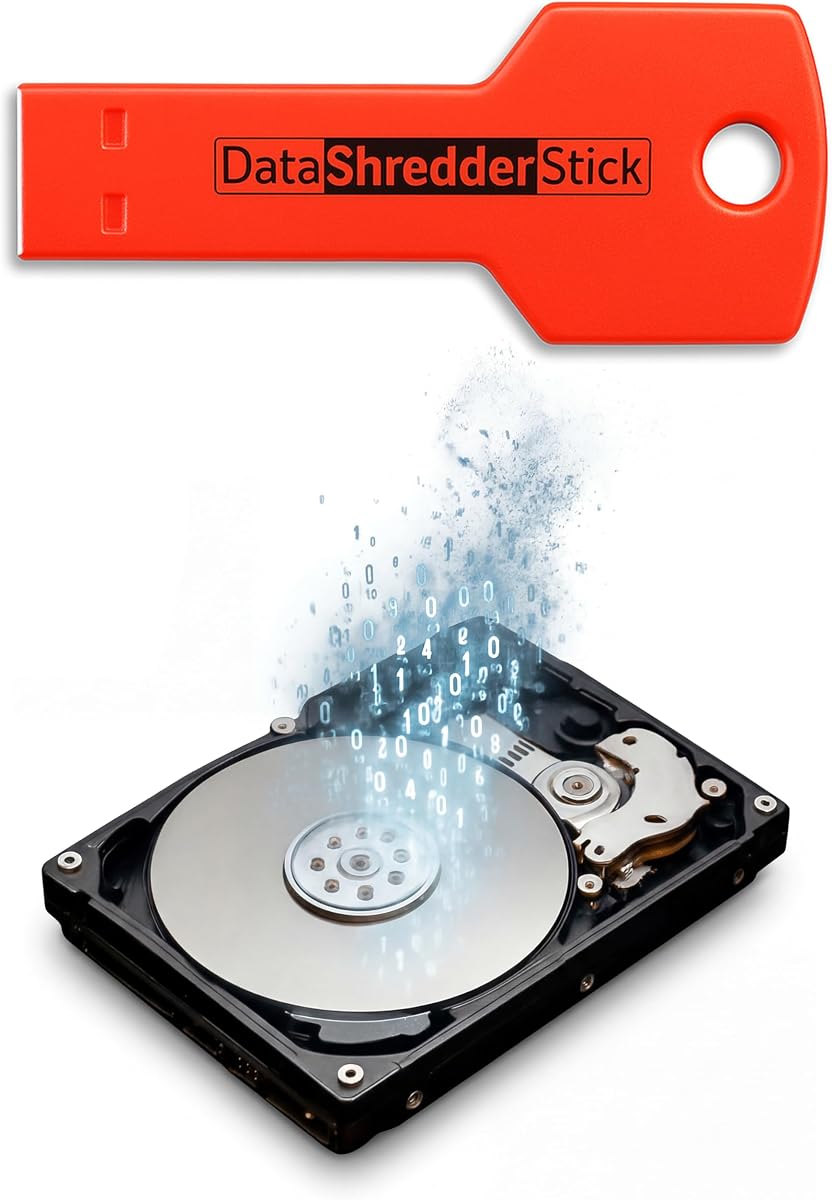


The Hard Drive Shredder Stick is a portable Windows-focused solution for securely removing individual files, folders, or entire drives. Its 3.5 rating reflects an approachable tool with broad use cases, particularly for users who want more control than a simple recycle-bin deletion provides. The product description emphasizes secure overwrite methods intended to prevent recovery through standard recovery software.
We may earn a commission when you buy through this link, at no additional cost to you.
One of its most useful distinctions is the ability to work at several levels. Users can drag and drop individual files or folders for targeted destruction, while the same device can also be used to erase internal or external drives before transferring equipment to another person. That flexibility makes it relevant for both everyday privacy maintenance and pre-sale computer preparation.
The stick also avoids conventional installation requirements. It runs from a USB connection and is described as working without an internet connection, which is useful in controlled offices or offline environments. However, it is expressly listed as compatible with Windows systems, so Mac and Linux users should not assume it will meet their needs. There is also no stated PDF report capability, an important consideration for managed IT workflows.
This is a strong choice for a Windows household or small office that values both file-level and drive-level wiping in one portable device. Buyers who need audit-ready records, mobile-device sanitization, or broad operating-system coverage should instead examine one of the Redkey models. For straightforward Windows privacy and reuse tasks, the Hard Drive Shredder Stick offers a convenient, focused solution.
The ability to shred selected files, folders, internal drives, or external storage gives users several levels of control. This is particularly useful when only a sensitive document must be destroyed or when an entire computer is being prepared for resale.
Because the tool operates as a plug-in USB device and requires no internet connection, it can fit controlled cleanup routines without depending on the operating system installed on the target computer.
We may earn a commission when you buy through this link, at no additional cost to you.
The DESTRUCT USB Gadget is designed around a clear task: erasing data from a PC or laptop before sale and preparing the machine for reuse. It carries a 3.8 rating and positions itself as a military-grade hard drive wiper, while its compact USB format keeps the process approachable for owners without advanced data-security experience.
We may earn a commission when you buy through this link, at no additional cost to you.
Its strongest advantage is the narrow, understandable purpose. Rather than presenting a broad collection of maintenance utilities, it focuses on wiping a drive and reducing the concern of transferring personal information to a new owner. That makes it easy to consider when an old computer is being sold, returned, or repurposed after a move or upgrade.
The product information is less comprehensive than that of several competitors. It states that the device erases hard drives and works with PCs and laptops, but it does not detail specific standards, reporting functions, activation procedures, or support for SSDs and newer drive formats. Users with formal compliance obligations may need more documentation and control than this listing provides.
For an individual preparing a computer for resale, the DESTRUCT USB Gadget is a convenient, no-frills choice. It is less compelling for corporate asset departments that need erase logs, broad platform support, or a clearly documented sanitization method. Confirm the target drive connection and system requirements before relying on it for a critical workflow.
The device focuses on the moment a computer changes hands. That concentration makes it appealing for private sellers and households seeking a straightforward way to remove personal information before listing equipment.
A USB-based form factor can be stored with other computer accessories and reused for successive cleanups. Its simplicity reduces the learning curve for users who only need to perform the task occasionally.
We may earn a commission when you buy through this link, at no additional cost to you.
The Redkey USB ++ Ultimate expands the standard USB wiper concept into a broader device-sanitation platform. Its 3.8 rating is supported by a feature list that includes automated scripting, industry-aligned secure erase, PC and Apple compatibility, and the ability to wipe many Android phones and tablets.
We may earn a commission when you buy through this link, at no additional cost to you.
Mobile device support is the standout feature for organizations handling mixed inventories. Rather than limiting itself to internal computer drives, the Ultimate version can process most compatible Apple and Android devices. Automated scripting can also reduce repetitive work when an administrator needs to apply consistent workflows across multiple systems.
The software runs directly from the bootable key and is described as completing secure erasure in minutes. Activation provides unlimited use, while updates are included without a continuing subscription. Some compatibility boundaries remain: the listing refers to most Intel-based Apple computers and most Android devices rather than every model, so an inventory check is still necessary.
This model suits IT technicians, refurbishers, and privacy-conscious users who want one reusable tool across computers and selected mobile devices. The Professional version may be a better fit when PDF evidence is essential, but the Ultimate version stands out for automation and broader endpoint coverage.
Support for most PCs, Intel-based Apple systems, and many Android devices lets a single workflow cover a wider collection of endpoints. It is especially useful where personal and mobile data coexist on devices being retired.
Automated scripting can help technicians reduce manual steps when preparing a series of machines. The feature gives experienced users more control while preserving a bootable USB-based workflow.
We may earn a commission when you buy through this link, at no additional cost to you.
The Redkey USB Professional combines secure drive erasure with one of the most useful administrative features in this category: PDF wipe reports. Its 4.0 rating is the highest among the portable USB-focused products listed, making it a balanced choice for individuals, professional technicians, and businesses that need evidence of completed work.
We may earn a commission when you buy through this link, at no additional cost to you.
Compatibility is a major strength. The bootable software supports most PCs, including laptops and desktops, as well as most Intel Macs. The Wipe Wizard guides users through the process, while ATA secure erase can complete the job in minutes. The product is activated once on a Windows PC and can then be used repeatedly with updates included.
The report function sets it apart from most similarly simple wiper sticks. Saving a PDF gives clients, managers, or auditors a record that can be retained and transferred. A customization option adds further flexibility for professional workflows. The limitations are that newer Apple silicon coverage is not clearly guaranteed and initial activation requires an internet-connected Windows PC.
This is our leading recommendation for a portable data destruction tool because it balances ease, platform reach, repeatable use, and documentation. It is especially appropriate for consultants, repair shops, and internal IT staff who sanitize equipment for customers and need proof of the process.
The ability to save PDF reports turns a wipe from an informal cleanup action into a documented service. That visibility is valuable when users need reassurance, an audit trail, or evidence delivered to another party.
A step-by-step Wipe Wizard helps reduce procedural mistakes, while modern ATA secure erase is designed to sanitize a drive in minutes. The combination balances accessibility with a faster professional workflow.
We may earn a commission when you buy through this link, at no additional cost to you.
The Hard Drive Eraser Bootable USB is an approachable, budget-oriented sanitation device for Windows-oriented PC users. Its 3.3 rating is the lowest in this roundup, but the underlying feature set covers the essentials: HDD and SSD erasure, offline operation, and support for multiple internal or external drives.
We may earn a commission when you buy through this link, at no additional cost to you.
The combination of USB-A and USB-C is especially useful in 2026 because it reduces connection problems across newer laptops, desktops, mini PCs, and Windows tablets. Its environment supports both UEFI and legacy BIOS systems, broadening the number of machines that can be booted from the device.
The listing states that its overwrite process complies with DoD 5220.22-M, a detail that gives technical users a more concrete basis for comparison than a general destruction claim. It can erase several drives simultaneously, improving efficiency for refurbishment or office disposal batches. On the other hand, the product information is centered on PCs and does not establish Mac compatibility.
This is our Best Budget selection for buyers who want a simple bootable drive with current connector support and multi-drive capability. It is less attractive for formal reporting or mixed computer fleets, but it delivers a practical core wiping workflow at a comparatively accessible entry point.
USB-A and USB-C connectivity, together with UEFI and legacy BIOS support, makes the device useful across a wider range of PC hardware. Users should still check boot-security settings on locked-down systems.
The ability to wipe multiple drives at once is valuable for office cleanouts and refurbishment batches. It reduces repeated setup when several storage devices must be processed.
We may earn a commission when you buy through this link, at no additional cost to you.
The Ralix Hard Drive USB Wiper is notable for broad desktop operating-system coverage in a bootable format. It supports Windows, Mac, and Linux as well as both 32-bit and 64-bit systems, making it a versatile choice for mixed personal or small-business environments. Its 3.8 rating reflects a generally practical proposition.
We may earn a commission when you buy through this link, at no additional cost to you.
The workflow centers on selecting drives and following on-screen instructions. A linked website provides step-by-step guidance, and the package includes a customer-support email address. This combination is useful for first-time users who want assistance without a complicated installation process.
The listing states that the erasure method meets DoD 5220.22-M standards. It also positions the tool around preparing computers for sale by removing personal information. The central trade-off is that its documentation emphasizes compatibility and ease more than governance: there is no stated wipe-report generation, automated scripting, or mobile-device sanitization.
Ralix is a strong fit for a household or repair workflow involving several operating systems. For organizations requiring formal evidence of each erase, the Redkey Professional offers PDF reports. For users who only need broad computer support, Ralix delivers a straightforward cross-platform alternative.
Windows, Mac, and Linux support is valuable in environments that do not standardize on one operating system. It can simplify procurement and reduce the need to maintain separate sanitation utilities.
On-screen directions, a web instruction link, and support contact information make the process less intimidating. Novices should still identify the target drive carefully before confirming any erase command.
We may earn a commission when you buy through this link, at no additional cost to you.
The Hard Drive Disk Eraser is a 32GB bootable solution aimed at users who need to sanitize complete systems, servers, flash drives, and memory cards. Its 3.4 rating places it in the middle of the field, but its broad media support and inclusion of both file-erasure and data-recovery bonuses make it versatile.
We may earn a commission when you buy through this link, at no additional cost to you.
It supports legacy BIOS and UEFI boot modes on 32-bit and 64-bit PCs, and it can wipe one drive or several drives simultaneously. The product states compliance with DoD 5220.22-M hard drive erase standards. These details make it relevant to IT teams that repeatedly process storage media but do not need a full standalone duplicator.
Compatibility is clearly bounded: Apple computers and Chromebooks are excluded, so the tool cannot cover every modern endpoint. The package includes the bootable USB drive and a printed user guide, but the retail box shown in the images is not included. Its file-erasure utility is a useful companion, although the recovery software should not be confused with the core sanitation function.
This option fits technical users and refurbishment workflows involving standard PCs and servers. It is less suitable for mixed Mac and Chromebook collections or for users who require a professional report. Its generous storage and multi-device capability compensate for a more PC-specific focus.
Beyond internal hard drives, the tool is stated to handle flash drives and memory cards. This expands its usefulness for offices that need to sanitize many removable formats rather than only desktop systems.
The bundled file eraser provides a way to remove selected content, while the data-recovery bonus can help users check ordinary deleted files. Core drive sanitization remains the primary function.
We may earn a commission when you buy through this link, at no additional cost to you.
The Secure Data Wipe USB stands out for including three recognizable erasure utilities: DBAN, ShredOS with Nwipe, and Secure Erase. Preloaded on a bootable drive, this product gives users several established approaches to drive sanitization while retaining the convenience of plug-and-play hardware. Its rating is 3.8.
We may earn a commission when you buy through this link, at no additional cost to you.
It is described as compatible with Windows and Linux across BIOS- and UEFI-based PCs and laptops, and it can erase both HDDs and SSDs. The inclusion of multiple utilities can be useful when a user or technician needs to select a different method, though it may also make the interface less immediately simple than a single guided wizard.
Compared with the Redkey Professional, this product does not advertise PDF reports or broad Intel Mac support. It is therefore less compelling for managed clients who need a documented chain of custody. Its primary appeal is the variety of embedded wipe engines and a straightforward bootable deployment model.
Choose the Secure Data Wipe USB for a PC-focused user who wants choice among recognized data sanitization tools without installing complex software on every target system. It is well suited to personal cleanups, workshops, and small IT teams that value compatibility and method selection over formal reporting.
DBAN, Nwipe through ShredOS, and Secure Erase provide different paths to sanitization. This variety lets experienced users choose the approach that best fits the target drive and organizational procedure.
Preloading the software on a bootable USB device avoids installing a sanitizer on the operating system being erased. It also permits use from another computer when the target system's normal software is inaccessible.
We may earn a commission when you buy through this link, at no additional cost to you.
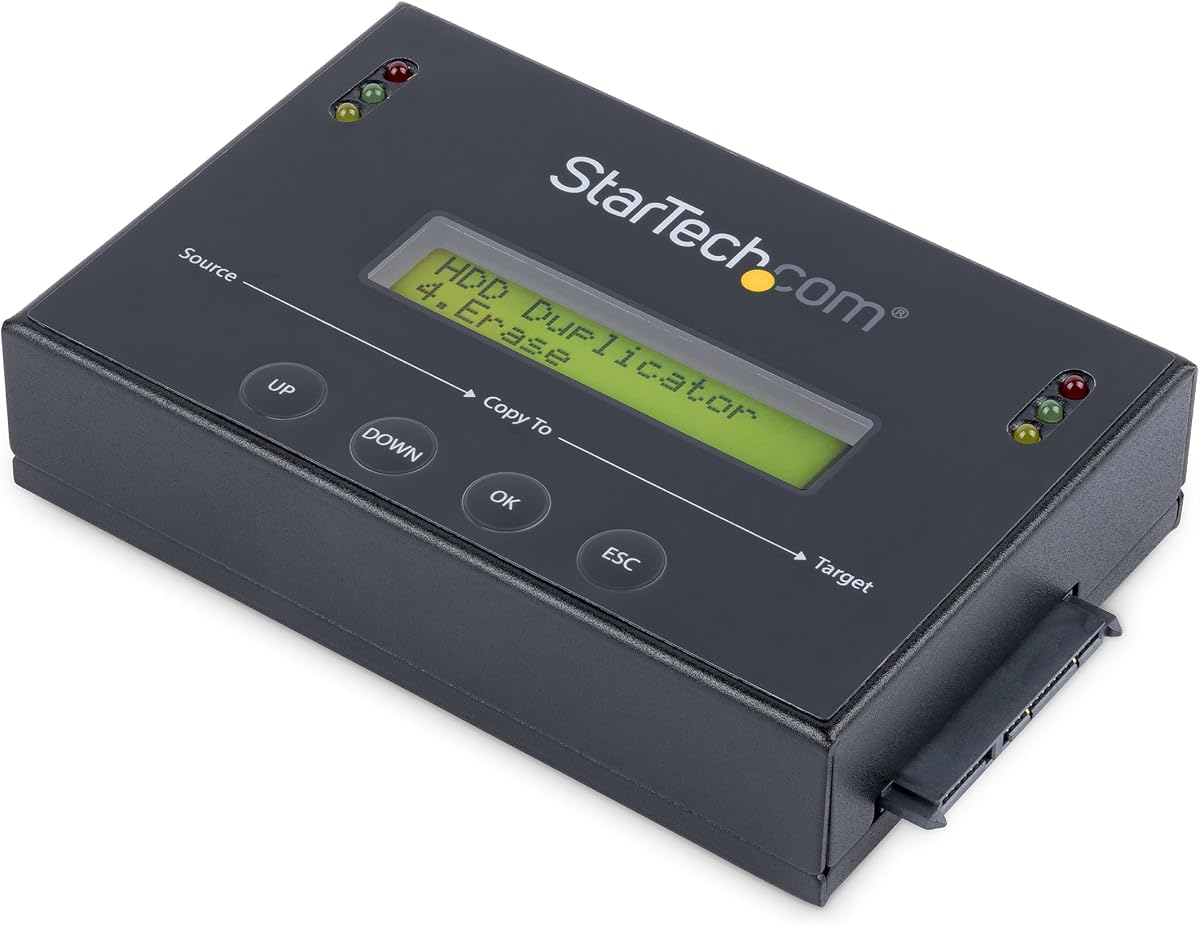
The StarTech.com SATDOCK4U3RE is a standalone four-bay drive duplicator, copier, docking station, and eraser for professional workflows. Its 4.5 rating is the highest among the ten products, and the combination of four drive bays, quick and secure erase modes, and standalone operation makes it a strong premium choice for serious drive processing.
We may earn a commission when you buy through this link, at no additional cost to you.
The device supports 2.5-inch and 3.5-inch SATA HDDs and SSDs, with included adapters for relevant IDE formats. A front LCD and push-button controls let an operator select erase or duplication modes and inspect drive information without relying on the host operating system. It also supports sector-by-sector cloning, file transfer, backup, and recovery functions.
Secure Erase follows the NIST SP 800-88 Rev. 1 Purge approach, providing a more formal foundation than many consumer USB wiper listings. However, the size, external power requirements, and need to connect individual SATA drives make it less convenient for a one-time household cleanup. It is designed for repeated servicing rather than occasional convenience.
This is the premium recommendation for IT departments, refurbishment businesses, and service technicians who process multiple disks. Its capacity, documentation, and standalone control justify the larger investment when throughput and repeatable operation matter more than pocketability.
Four top-loading drive bays allow a technician to manage several disks in one workstation. This makes the unit more suitable for batch processing than a single-purpose USB stick.
The LCD and physical controls allow erase and clone operations without depending on a general-purpose desktop environment. A dedicated appliance can also simplify repeatable service procedures.
We may earn a commission when you buy through this link, at no additional cost to you.
The StarTech SATDUP11 is a focused standalone duplicator and eraser for 2.5-inch and 3.5-inch SATA drives. It combines fast sector-by-sector copying with four erasure modes, and its 4.4 rating makes it another standout choice for technicians who want a dedicated service appliance.
We may earn a commission when you buy through this link, at no additional cost to you.
The duplication options cover whole-disk, system-and-file, and all-partitions copying. On the sanitation side, users can choose Quick Erase, Secure Erase, single-pass overwrite, or a three-pass overwrite associated with DoD and NIST SP 800-88 Rev. 1 Clear. An LCD provides navigation and displays drive information or errors through physical controls.
Copy and Compare verification adds an important assurance step after cloning. The unit supports HDDs and SSDs of any capacity, while eSATA, mSATA, IDE, and M.2 SATA support may require separately sold adapters. Because it handles one source and one target at a time, throughput across a large inventory will be lower than with a four-bay system.
The SATDUP11 is a strong fit for technicians who primarily need one-to-one duplication, verification, and flexible sanitization methods. Choose it when a compact standalone workflow matters more than simultaneous multi-drive capacity; choose the four-bay StarTech model for heavier batch work.
Four available modes let operators balance speed against the thoroughness required by a particular procedure. This makes the unit more adaptable than tools that expose only a single wipe command.
Copy and Compare checks the finished target against the source. That verification is valuable when the destination disk will be deployed, restored, or handed to a customer after imaging.
We may earn a commission when you buy through this link, at no additional cost to you.
The right hard drive wiper data destruction tool depends on the devices you sanitize, the evidence you must retain, and how often the task is performed. Portability, platform support, erase methods, and reporting capabilities should be weighed before making a selection.
Portable USB wiper sticks are the most convenient option for occasional computer cleanups. They can be carried between systems, booted without installing software on the target operating system, and used to prepare one machine at a time. Standalone drive erasers are more appropriate for technicians, refurbishment businesses, and offices that repeatedly process removable SATA drives. These larger appliances may provide multiple bays, cloning, verification, and faster physical workflows, but they occupy desk space and require compatible storage hardware.
Compatibility should be checked against the exact computers you intend to sanitize. Some products focus on Windows PCs, while others support Linux, Intel-based Macs, or selected mobile devices. Boot method also matters: UEFI, legacy BIOS, Secure Boot, and USB port availability can determine whether a bootable wiper will start. A product that says it works with a PC may still be unable to boot on a locked system whose firmware security settings are not compatible with the device.
A useful wiper should explain how it removes data rather than relying only on a broad destruction claim. Secure overwrite methods repeatedly alter storage areas, while device-level secure erase commands instruct compatible drives to reset their internal storage. Standards such as DoD 5220.22-M and NIST SP 800-88 provide useful reference points, although a listing's claim should be verified against the software and drive types involved. For SSDs and modern systems, selecting the appropriate method is especially important.
The target computer is not the only hardware that matters. The wiper must be able to sanitize the internal HDD or SSD, external storage, and any removable media you plan to include in the workflow. Some USB tools focus on internal SATA drives, while standalone systems may support 2.5-inch and 3.5-inch SATA devices. Multi-drive models can process several disks concurrently, and dedicated cloning products may also require adapters for older IDE or newer M.2 SATA drives.
For a private resale, a guided wipe may be sufficient, but business customers and compliance-conscious organizations often need evidence that a disk was processed. PDF reports can be attached to an asset record, while logs, serial numbers, and operator controls may also be valuable. Products with automated scripting, customizable options, or repeatable procedures are generally more suitable for managed workflows than simple gadgets marketed only for pre-sale cleaning.
A step-by-step wizard is valuable for occasional users because it reduces the risk of selecting the wrong drive. Experienced technicians may prefer options for automated scripts, multiple erase modes, cloning, comparison, and direct hardware controls. The best tool is not necessarily the one with the most features, but the one whose workflow matches the operator's skill and the organization's documentation needs. Clear on-screen instructions, target-drive selection, and confirmation steps are especially important when permanent erasure is involved.
Some portable wiper software requires a one-time online activation on a Windows computer, while others advertise offline use without registration. A one-time activation is not necessarily a drawback, but it matters if the device must be deployed in an air-gapped environment or activated before traveling to another site. Long-term software updates can also improve device compatibility and usability. Standalone hardware, by contrast, generally separates the appliance from any recurring subscription and may be easier to deploy predictably.
A reusable tool offers better value when it will sanitize several systems, but the user experience should remain consistent each time. Look for online instructions, accessible customer support, clear firmware or software maintenance, and physical features that suit your work area. Professional standalone products often include extended warranties and round-the-clock multilingual technical assistance, which can reduce downtime in a managed environment. For occasional users, simple web guidance and a straightforward support contact may be sufficient.
Begin by identifying every drive that needs to be erased and disconnecting unrelated storage devices. Read the product instructions, confirm operating-system and boot compatibility, and back up anything that must be retained. For a bootable USB wiper, insert the device, restart the target computer, and use its firmware boot menu or specified startup key to launch the cleaning environment.
Select the correct drive in the wipe interface and review the method, scope, and estimated time before confirming. Do not interrupt a multi-pass overwrite, secure erase command, or verification process. If cloning is included, follow the tool's guidance for source and target selection, and use any copy comparison feature to check the resulting image. Retain reports or other evidence in a secure location after a successful cycle.
Care for the device by keeping the USB contacts clean and dry, using a protective case during transport, and avoiding abrupt removal while software is running. Update bootable software when connected to a safe internet-enabled environment, and periodically check that new computer models remain compatible. For standalone equipment, use the correct power adapter, handle drive trays gently, and record any reported errors rather than repeatedly retrying a failing drive.
Ordinary deletion usually removes the file reference rather than physically destroying the data, so recovery software may still find it. A data destruction tool applies dedicated overwrite, secure erase, or device-level reset methods. The appropriate method depends on the storage type, and formal workflows may also require documentation.
Many modern products support both HDDs and SSDs, but compatibility should always be confirmed for the specific model. SSDs store data differently and may respond best to built-in secure erase commands, while conventional overwrite methods are commonly used with hard drives. The product listing should identify supported media and recommended methods.
Bootable USB wiper designs are specifically intended to run from the device rather than requiring installation on each target computer. This is useful when the operating system is unstable, inaccessible, or due for replacement. Some products still require initial activation on a Windows computer, so check the setup requirements before relying on the device offline.
The Redkey USB Professional is the clearest match in this roundup because it specifically generates PDF wipe reports. It also supports PCs and most Intel Macs and provides a guided workflow. Businesses should verify their internal compliance and recordkeeping requirements before choosing an erase method.
Yes, securely wiping a drive before sale is one of the main uses for portable wiper sticks. The drive should be erased within the running computer, while the wiper software boots from its own USB device. Once complete, the operating system may need to be reinstalled, and some sellers also reset system settings separately.
A USB wiper is portable and generally intended to sanitize the internal drive of the computer from which it boots. A standalone eraser connects directly to removable SATA drives and often supports cloning, multiple bays, verification, and repeated service operations. USB products suit occasional use, while standalone units fit professional drive-processing workflows.
A properly executed wipe can remove personal data, but safe handling also depends on the organization's disposal policy. Some facilities require asset records, certificates, physical drive destruction, or certified sanitization methods. Check current policy requirements and consider professional data destruction services when the risk or compliance level is high.
The duration depends on the drive capacity, technology, selected method, and hardware. Secure erase commands can be relatively quick on some SSDs, while multi-pass overwrites can take much longer on high-capacity HDDs. Redkey products state that secure erasure can occur in minutes, and standalone StarTech devices are designed for comparatively fast physical processing.
The Hard Drive Shredder Stick is a versatile general choice for Windows users who need both file-level and whole-drive destruction. The Redkey USB Professional stands out for PC and Mac coverage, guided operation, and PDF reports, while the StarTech 4-Bay Drive Eraser is the strongest option for high-volume professional processing. Each serves a different workflow rather than competing for every use case.
Prioritize the factors that affect your actual environment: verified platform compatibility, support for the exact drive types involved, a clearly explained erase method, and evidence generation if clients or auditors need it. For occasional household resale work, a portable bootable stick is usually sufficient. For repeated service work, cloning, multiple bays, and verification can justify standalone hardware.
Before purchasing, confirm the latest system requirements, activation conditions, included accessories, and current product details on the listing. Prices and availability can change, and drive interfaces evolve, so check the seller's current information rather than relying solely on a previous review or comparison chart.