
Logitech Brio 100
4.4Editor score
Full HD 1080p video
Automatic brightness balance
Integrated privacy cover
An external webcam can substantially improve the image and sound of Mac video calls, online meetings, remote teaching, and live streaming. The right model balances resolution, lens performance, autofocus, microphone quality, privacy controls, and easy compatibility with macOS and your preferred conferencing applications.
We compared ten external webcams using the specifications and feature details supplied for each product. The list covers true 4K and 1080p models, premium business-oriented cameras, portable options, and more affordable models for everyday calls, with attention to privacy, audio, lighting correction, and mounting flexibility.
Each review explains the strongest features, practical trade-offs, and ideal user so you can match a webcam to your setup. Ratings and product details may change over time, and current prices and availability can vary, so confirm the latest listing information before making a purchase.
4.4Editor score

4.6Editor score

4.6Editor score
As an Amazon Associate we earn from qualifying purchases.
The comparison below places every webcam's core capabilities side by side, highlighting resolution, autofocus, audio, privacy design, and the feature set that matters most to Mac users.




The Acer 4K Webcam earns a 4.6 rating and stands out as the most complete option in this guide for users who want more resolution than a conventional 1080p camera can provide. Its large Sony 1/2-inch CMOS sensor, true UHD 4K capability, and phase-detection autofocus make it particularly appealing for creators, remote professionals, and anyone who regularly appears on camera.
We may earn a commission when you buy through this link, at no additional cost to you.
Image quality is the central attraction. The sensor is described as delivering balanced, true-to-life visuals, improved light capture, and strong low-light performance, while PDAF is intended to maintain focus more quickly and steadily than conventional autofocus. Dual high-sensitivity digital microphones are another meaningful advantage because they can pick up voices from as far away as 2.5 meters and filter wind, keyboard clicks, and other ambient noise.
The hardware is also thoughtfully designed. A CNC-machined aluminum unibody gives the webcam a premium appearance, helps dissipate heat during long sessions, and keeps the unit compact at just 57 grams. Its magnetic privacy cover uses twelve built-in magnets to block the lens when it is not in use. The trade-offs are that achieving 4K may require changing settings in camera software or a compatible application, and newer Mac users may need the included USB-A-to-USB-C adapter.
This is the best overall pick for a Mac user who wants 4K detail, reliable autofocus, capable microphones, and physical privacy in a portable package. It suits streamers, meeting presenters, educators, and content creators, while plug-and-play operation also makes it convenient for occasional calls. If your computer lacks a USB-A port, check the included adapter before ordering, and confirm that your preferred apps support the desired capture resolution.
The 1/2-inch Sony sensor gives this model a meaningful specification advantage for detailed calls and recorded content. The 4K output can reveal texture, small facial details, and fine objects more clearly than 1080p, particularly when the camera is used close to the subject and lighting is controlled.
PDAF is designed to keep faces sharper during movement, while the dual digital microphones reduce common distractions such as typing and wind. Together, these features make the webcam useful when visual clarity and intelligible speech are equally important.
At 57 grams, the camera is easy to move between a home office, shared workspace, or travel setup. The magnetic lens cover provides a quick, visible way to block capture without relying only on software settings.
We may earn a commission when you buy through this link, at no additional cost to you.
The Anker PowerConf C200 has a 4.4 rating and offers a balanced combination of 2K image detail, low-light performance, audio processing, and framing controls. It is an appealing option for Mac users who want more definition than 1080p without moving to a camera that focuses primarily on 4K streaming.
We may earn a commission when you buy through this link, at no additional cost to you.
Its 2K resolution produces sharper, more detailed conference footage, and the low-light capability is designed to keep images clear in dim rooms without requiring additional lighting. The dual microphones use AI noise cancellation to improve voice clarity in noisy environments, while three field-of-view choices—65, 78, and 95 degrees—allow you to tighten the frame around your face or include more of your surroundings.
The integrated sliding lens cover is convenient because it can be moved without navigating a menu. Compatibility with Windows 7 or later and macOS 10.11 or later broadens the potential audience, and its support for typical conferencing workflows makes it a straightforward choice. The main limitation is resolution: this is not a true 4K model. Also, changing the field of view requires using software rather than a physical adjustment on the camera.
Choose the PowerConf C200 for daily Zoom or Teams meetings, remote collaboration, and streaming when you value flexible framing, low-light performance, and noise-reduced audio. It is especially attractive for users who work in changing light conditions or need to alternate between a face-focused view and a wider office shot. It may not be the right choice for creators who require native 4K files, but its 2K output remains a practical upgrade over standard Full HD.
Low-light correction is valuable for evening meetings and home offices where a lamp may be your only illumination. The camera is designed to retain clarity in dim conditions, although the best-looking results will still come from adding a soft, front-facing light.
The three field-of-view options let you frame a head-and-shoulders shot for interviews or a wider view for demonstrations. Because the choices are controlled in software, it is worth configuring the angle before a meeting rather than during it.
Dual microphones and AI noise cancellation help keep your voice prominent when coworkers, household members, or street noise are nearby. This makes the camera more practical for conversations than a basic camera with a single, untreated microphone.
We may earn a commission when you buy through this link, at no additional cost to you.
The EMEET C960 4K carries a 4.5 rating and is a strong all-round choice for Mac users who want true 4K capture without giving up flexible framing and mounting. Its native 4K CMOS sensor, phase-detection autofocus, and 73-degree field of view make it well suited to video meetings, online teaching, presentations, and recorded content.
We may earn a commission when you buy through this link, at no additional cost to you.
PDAF is intended to maintain stable focus in business conferences and educational lectures, while automatic light adjustment helps the camera handle both over-exposed and low-light environments. The 73-degree field of view is wide enough to show some background while still directing attention toward the user. Dual omnidirectional microphones provide clear, natural voice capture, and the included privacy cover adds a physical layer of protection.
One important detail is that video defaults to 1080p, even though the hardware uses a genuine 4K sensor. Users must select 4K through the built-in camera software or compatible applications such as PotPlayer or OBS. This is not a major flaw, but it can cause initial confusion. The camera also supports a 1/4-inch tripod thread, 360-degree horizontal adjustment, and 15-degree vertical adjustment, giving Mac users more placement options than a simple clip-on model.
The C960 is ideal for users who want 4K flexibility, reliable autofocus, and a tripod-compatible body. It works with macOS 10.14 and above and supports widely used services such as Zoom, Teams, and Skype. It also supports EMEETLINK for personalization. Choose it if you understand that 4K must be enabled manually and if you value mounting control as much as image quality.
Unlike cameras that advertise 4K while relying on digital upscaling, the C960 uses a genuine 4K CMOS sensor. The extra detail can be valuable in recordings, demonstrations, and close-up presentations where facial features and small objects need to remain clear.
A 1/4-inch thread and broad adjustment range let the camera sit on a monitor, laptop, small stand, or tripod. Proper positioning can make a meaningful difference to eye level, background composition, and the apparent angle of your face.
The webcam defaults to 1080p for easier everyday use, but 4K can be selected in camera software or compatible capture programs. This gives users a sensible default without preventing higher-resolution recording when a project needs it.
We may earn a commission when you buy through this link, at no additional cost to you.
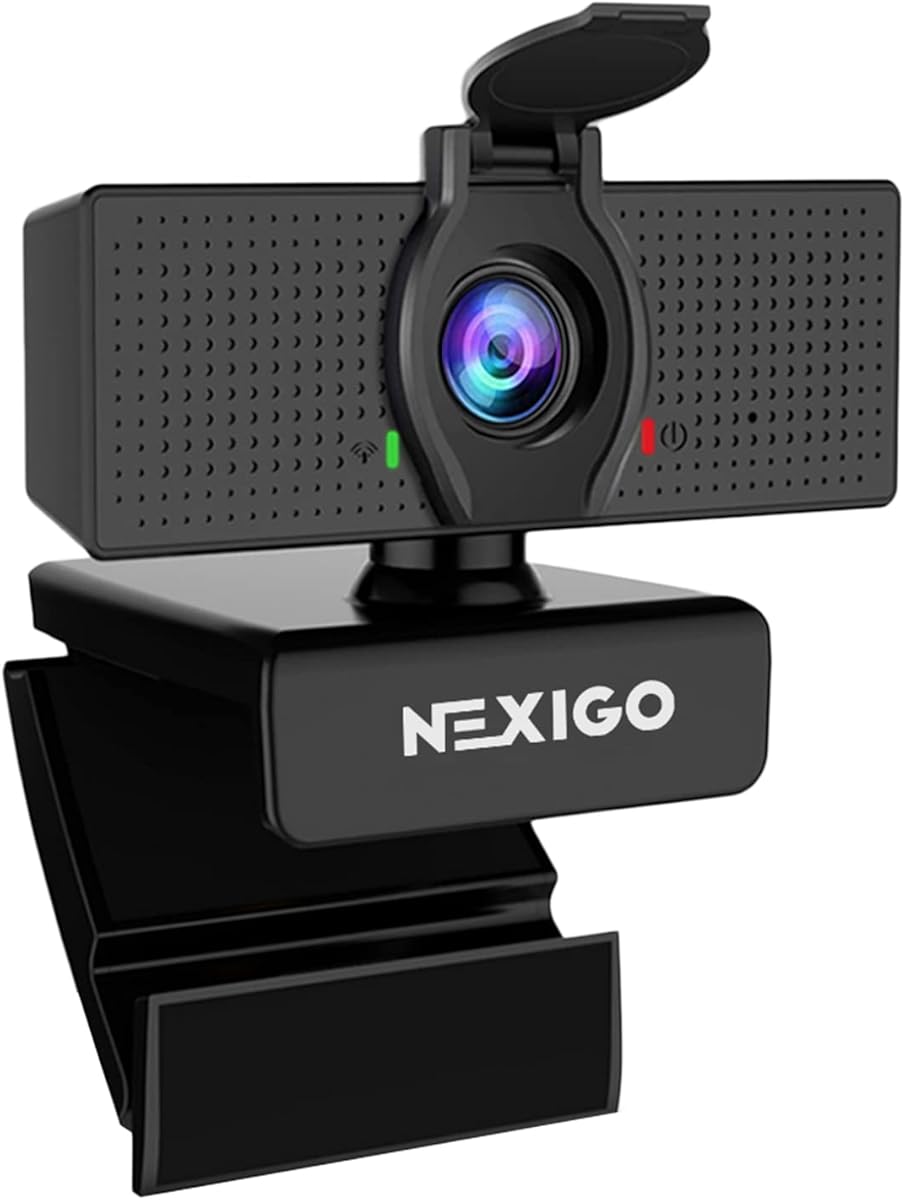
The NexiGo N60 has a 4.3 rating and provides a practical Full HD experience for people who want a straightforward webcam for calls, classes, streaming, and recording. It outputs up to 1920 by 1080 at 30 frames per second and uses a two-megapixel CMOS with a 3.6mm glass lens.
We may earn a commission when you buy through this link, at no additional cost to you.
The fixed-focus lens is optimized for distances from 19.6 inches to 13 feet, covering most indoor desk and room setups. Its built-in noise-canceling microphone is intended to reduce ambient sound during common applications including FaceTime, Zoom, OBS, Twitch, YouTube, online school, and conferencing. The webcam also includes software controls and a manual privacy cover for blocking the lens.
Its major strength is uncomplicated compatibility. It supports USB 2.0 and 3.0, requires no additional drivers, and is listed for Mac OS X 10.7 and higher, as well as several Windows, Android, Linux, Chrome OS, and Ubuntu versions. The limitations reflect the camera's more conventional design: focus is fixed rather than automatic, and the physical cover must be moved by hand. A firmware update may be needed if an audio delay appears.
The N60 is a good fit for students, remote workers, and occasional presenters who value 1080p clarity, a privacy cover, and quick setup more than sophisticated autofocus. It can be positioned close to the display or used with compatible third-party mounting hardware. If you move frequently around a large room or need automatic subject tracking, a model with more advanced focusing will serve you better.
For a user seated at a desk, a fixed-focus lens can be advantageous because there is less autofocus hunting during a call. The stated focus range covers typical indoor working distances, so the camera is best kept in a stable position.
No additional drivers are required, and compatibility with Mac OS X 10.7 and higher extends support across a broad range of Macs. Once connected by USB, the camera is positioned as an external capture device in the usual conferencing applications.
The sliding privacy cover blocks the lens when the webcam is not in use. It offers a visible, mechanical way to prevent capture and can help reassure people sharing a home or office with other residents.
We may earn a commission when you buy through this link, at no additional cost to you.
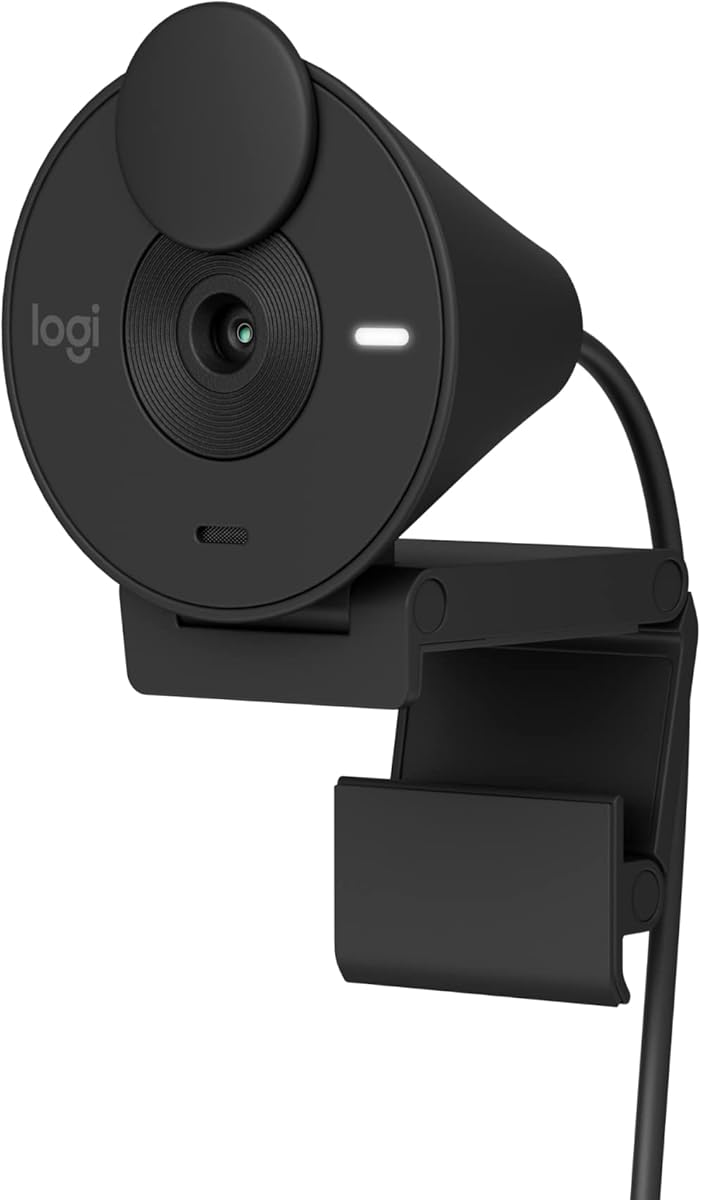
The Logitech Brio 100 has a 4.4 rating and is a sensible entry point for Mac users who want a polished Full HD webcam for ordinary meetings without paying for features they may never use. It combines 1080p video, automatic brightness balancing, a built-in microphone, and an integrated privacy cover in a simple design.
We may earn a commission when you buy through this link, at no additional cost to you.
RightLight is the most notable feature, increasing brightness by up to 50% compared with earlier Logitech webcams to reduce facial shadows. That automatic correction is useful in home offices where a screen or window can cast uneven light across the face. The camera works with major platforms such as Microsoft Teams, Zoom, and Google Meet, and the white finish is designed to coordinate neatly with a desktop setup.
Privacy is handled through a slide-over cover rather than a separate accessory, which is convenient for people who want to verify that the lens is blocked between meetings. The built-in microphone is adequate for ordinary voice communication, although a separate microphone may produce better results in demanding recording or streaming work. As with other 1080p models, the camera cannot deliver native 4K detail.
The Brio 100 is best for students, hybrid employees, and casual streamers who want dependable Full HD calls with minimal setup. It is also a practical first webcam for users who are unsure whether they need a more advanced camera. Choose it when automatic lighting correction, a tidy design, and a built-in privacy cover matter more than 4K resolution, high-end optics, or advanced autofocus.
RightLight automatically adjusts the image to reduce shadows and improve visibility. It is particularly helpful for people who cannot control the room lighting or who work at different times of day.
Sliding the cover over the lens gives a clear indication that the camera is no longer recording. The integrated design removes the need to keep a separate shutter accessory attached or nearby.
Full HD resolution remains sufficient for standard meetings, classes, and streaming, while the built-in microphone keeps the setup simple. It offers a more refined package than a barebones camera without adding unnecessary controls.
We may earn a commission when you buy through this link, at no additional cost to you.
The Logitech Brio 301 holds a 4.4 rating and is designed for people who want a clean, business-friendly webcam for calls, meetings, and streaming. Its Full HD 1080p resolution provides a natural-looking image, while RightLight 2 automatically compensates for poor lighting so your face remains visible.
We may earn a commission when you buy through this link, at no additional cost to you.
The built-in mono microphone uses noise reduction to suppress background sound and make your voice easier to hear. Privacy is controlled by rotating the camera into a shutter position, a tactile method that clearly signals when the lens is blocked. The camera is certified for Zoom, Microsoft Teams, and Google Meet, and the free Logi Tune application can be used to adjust color and image quality.
Compared with the Brio 100, this model places more emphasis on business-oriented controls and creates a more traditional Logitech webcam aesthetic. The drawback is that its single mono microphone does not offer the natural stereo pickup associated with dual-microphone models. It also remains limited to 1080p, so users creating highly detailed 4K material will need to look elsewhere.
The Brio 301 is a good choice for remote professionals who participate in frequent virtual meetings and value automatic image correction, recognized platform compatibility, and an uncomplicated privacy mechanism. It is also suitable for streaming and online school. Choose it over a barebones model when polished appearance, software-based image tuning, and a clearly visible privacy shutter are important to your setup.
The automatic correction system is designed to improve visibility in dim or unevenly lit spaces. It reduces the need for repeated manual exposure adjustments, especially when you move between home and office environments.
Logi Tune provides dedicated controls for color and overall image quality. These settings are helpful for fine-tuning a camera to your monitor and room, although the defaults should be sufficient for standard calls.
Rotating the webcam engages the privacy shutter and physically covers the lens. This gives you an immediate visual confirmation of privacy without navigating application settings or trusting software alone.
We may earn a commission when you buy through this link, at no additional cost to you.
The Logitech C920e has a 4.6 rating and is a strong premium choice for business-oriented Mac users. It combines 1080p image quality, HD autofocus, a balanced 78-degree field of view, two omnidirectional microphones, and formal certification for Zoom and Microsoft Teams.
We may earn a commission when you buy through this link, at no additional cost to you.
Its 78-degree view is designed to frame an individual naturally while leaving enough room to share a project or other visual material. HD autofocus keeps the subject clear as distances change, and automatic light correction helps produce a balanced image. The two omnidirectional microphones can capture speech from up to one meter away, making the camera suitable for office meetings and video calls without requiring a separate microphone.
The privacy screen flips down over the lens, and its visible position makes it easy to see whether the camera is exposed. An adjustable clip allows mounting on laptops or external displays, while the 1/4-inch thread provides tripod versatility. For organizations managing personal video devices, Logitech Sync can help keep equipment connected and updated. The key limitation is that this remains a 1080p design rather than a 4K premium model.
The C920e is best for office professionals, remote teams, and Mac users who need a recognizable business webcam with dependable autofocus and dual-microphone audio. It is a particularly strong choice when participating in certified Zoom or Microsoft Teams workflows or when device management matters. Choose it over a higher-resolution streaming camera when meeting reliability, framing, audio, and enterprise usability are more important than 4K.
The 78-degree field of view balances a person-focused composition with enough background space for presentations. HD autofocus then keeps the subject stable when leaning forward, sitting back, or shifting position during a meeting.
Two microphones capture natural audio from up to one meter away. Their omnidirectional design suits the open, conversational sound of office calls, while avoiding the need to place a separate microphone close to the speaker.
The sturdy adjustable clip fits laptops and monitors, and the 1/4-inch thread allows tripod use. Logitech Sync adds value for organizations that need a consistent way to manage deployed personal video devices.
We may earn a commission when you buy through this link, at no additional cost to you.
The Logitech C922x receives a 4.6 rating and differentiates itself through flexible output options, automatic image enhancement, stereo audio, and streaming-oriented software. It records Full HD 1080p at 30 frames per second or 720p at 60 frames per second, allowing Mac users to choose between higher resolution and smoother motion.
We may earn a commission when you buy through this link, at no additional cost to you.
HD light correction and autofocus fine-tune the image automatically, which is useful for streaming, video conferences, and laptop-based recording. Its dual microphones support natural stereo audio for calls and recorded content. A three-month XSplit VCam license is included, and the webcam can work as a desktop or monitor camera, giving users tools to remove, replace, or blur a virtual background without a green screen.
Unlike several other Logitech webcams in this guide, the C922x does not have a built-in privacy shutter. That is the most important trade-off to consider for a shared office or a home where physical lens protection is important. Its 60fps mode also records at 720p rather than 1080p, so it is better suited to smooth gameplay and fast motion than to maximum image detail.
The C922x is a good match for Mac users who alternate between professional calls and live streaming, particularly when higher frame rate and virtual-background software are important. It is also compatible with major platforms and the Nintendo Switch 2's GameChat mode. Choose it when performance options and stereo capture outweigh the benefit of a 1080p privacy shutter, and add a separate cover if physical lens protection is a priority.
The ability to choose 1080p at 30fps or 720p at 60fps is useful across different activities. Standard calls benefit from 1080p detail, while fast movement and gaming can look smoother at the higher frame rate.
Dual microphones provide a more natural stereo presentation for recorded videos and conversations. This gives the webcam more flexibility than basic models with a single mono microphone when audio quality is a priority.
The included XSplit VCam license can remove, replace, or blur backgrounds. That capability makes the C922x useful for streaming and remote presentations where a clean visual composition matters.
We may earn a commission when you buy through this link, at no additional cost to you.
The Logitech C920S has a 4.6 rating and remains a compelling choice for Mac users seeking dependable 1080p video, dual-microphone audio, and physical privacy. It uses a glass lens and supports Full HD 1080p recording at 30 frames per second for sharp, vividly colored calls and video.
We may earn a commission when you buy through this link, at no additional cost to you.
HD autofocus is designed to maintain a sharp image, while automatic light correction helps the camera compensate for different indoor conditions. Dual microphones capture natural stereo sound for conversations and recorded content. The most user-friendly feature is the fitted privacy shutter, which physically covers the lens and gives you direct control over when the camera can see the room.
The C920S is a more focused, traditional webcam than software-heavy alternatives. It does not include the XSplit VCam license associated with the C922x, and its maximum 30fps frame rate is not intended for high-frame-rate game capture. It is, however, a mature and uncomplicated choice for meetings, classes, interviews, and standard Full HD recording.
Choose the C920S if privacy, consistent 1080p quality, and stereo audio are your main requirements. It works particularly well for fixed desk-based recording and conferencing, and its physical shutter is a meaningful advantage over models that offer no integrated cover. Users seeking 4K detail, adjustable framing software, or 60fps video should consider one of the newer models in this guide.
The C920S combines a glass lens with Full HD recording to produce clear, colorful footage. It is a dependable choice for calls and content where 1080p remains the practical target.
Automatic focusing keeps the face sharp as the user moves, while automatic light correction helps balance the image. Together, they reduce the need for manual adjustment in everyday office and home environments.
The snugly fitting privacy shutter blocks the lens directly. It is simple, reliable, and immediately visible, making it convenient for users who share a room or want to control capture at a moment's notice.
We may earn a commission when you buy through this link, at no additional cost to you.
The second Acer 4K Webcam in this guide has a 4.4 rating and shares the first model's impressive combination of true 4K resolution, a Sony 1/2-inch CMOS sensor, and phase-detection autofocus. Its CNC-machined aluminum unibody and 57-gram weight make it particularly compact for mobile work and shared workspaces.
We may earn a commission when you buy through this link, at no additional cost to you.
The sensor is described as providing balanced, true-to-life images, strong light capture, and improved low-light performance. Dual high-sensitivity digital microphones can pick up voices from up to 2.5 meters and filter wind, keyboard clicks, and ambient noise. A magnetic privacy cover with twelve built-in magnets snaps over the lens when the camera is not in use, and the aluminum body promotes fast heat dissipation during extended sessions.
The most significant practical difference from the first Acer model is the connection. This version uses a single USB-A connection, while the first model offers a USB-C-to-A cable and includes a USB-A-to-USB-C adapter. MacBook and modern iMac users may therefore need a suitable USB-A adapter or hub. The product does not include the stated adapter, so compatibility should be checked before purchase.
This Acer model is a strong choice for streamers, commerce presenters, remote workers, and Mac users who want true 4K in a very small body. The combination of PDAF, a larger sensor, and capable microphones gives it genuine appeal beyond ordinary video calls. Choose it when 4K and portability matter, and favor the first Acer listing instead if a more flexible USB-C-oriented connection package is preferable.
The webcam combines true 4K output with a 57-gram body that is about the size of a pair of earbuds. That makes it easy to carry between a home office, coworking location, and travel setup.
The Sony sensor provides a strong foundation for light capture and low-detail 4K recording, while PDAF is intended to maintain focus during movement. These specifications are especially relevant to active presenters and streamers.
The unibody aluminum construction helps dissipate heat during long sessions. A twelve-magnet cover secures the privacy panel over the lens, providing a quick physical barrier against unwanted capture.
We may earn a commission when you buy through this link, at no additional cost to you.
The most useful webcam is the one that produces a clear, natural image in your actual environment while meeting your privacy, audio, compatibility, and recording needs. These factors help separate a simple call camera from a more capable streaming and presentation device.
Choose 1080p for reliable everyday calls and simpler workflows. Choose 4K when fine detail, larger displays, professional recording, or later editing justify the additional processing demands.
Choose PDAF or another capable autofocus system for movement and variable positioning. A fixed-focus camera is reasonable when you always sit at the same distance and prefer a simpler setup.
For daily calls, prioritize a noise-reducing microphone and test it in your real environment. Use a dedicated external microphone when broadcast-quality sound or reliable distant pickup is essential.
Choose a camera with automatic light correction for changing environments, but also add a front-facing light if you need professional-looking results. Avoid placing the screen directly behind you.
Choose an integrated physical privacy control if you want confidence at a glance. If a model lacks one, add a compatible cover and review macOS camera permissions regularly.
Choose a 73- to 78-degree field of view for a balanced meeting frame. Look for adjustable viewing angles and a 1/4-inch thread if you want greater control over positioning.
Check the listed macOS requirement and your available ports before buying. Verify that the webcam appears correctly in FaceTime, Zoom, Teams, Google Meet, or your recording application.
Choose a sturdy adjustable model for a permanent workstation. Choose a compact camera for travel, and verify that its clip can support the intended display.
Begin by connecting the webcam to the appropriate USB port on your Mac. If the camera uses USB-A, connect it through a compatible adapter or hub. Open System Settings, choose Privacy & Security, and confirm that your browser or conferencing application has camera and microphone access. When the application asks which camera and microphone to use, select the external webcam rather than the built-in FaceTime camera.
Place the camera at or just above eye level and point it toward your face, with the lens a reasonable distance away. Test the framing in your main application before a call. If resolution or frame rate can be adjusted, select 1080p for standard calls and reserve 4K for recording or high-detail applications. Use the camera's companion software to refine focus, exposure, color, and field of view, then save those settings as your normal profile.
For maintenance, disconnect the camera before moving it, and avoid pulling on the cable or mounting clip. Clean the lens gently with a soft, dry microfiber cloth, and keep the privacy cover or shutter free from dust and sticky residue. Store the webcam in a protective place when traveling, check the USB connection for loose fit, and update any available camera software or firmware to preserve compatibility and improve operation.
An external webcam often provides sharper detail, more accurate autofocus, better microphone pickup, and more consistent image quality than a built-in MacBook camera. It can also offer a wider field of view, improved low-light handling, and physical privacy controls. The built-in camera remains adequate for quick calls, while an external model is usually more useful for frequent meetings, teaching, demonstrations, and recording.
Full HD 1080p is sufficient for most video calls and online meetings. A true 4K camera becomes more useful for close-up content, presentations, high-resolution recording, and editing workflows. It also places greater demands on lighting, processing, bandwidth, and your conferencing application, so 4K is not automatically better for every Mac user.
You will need a compatible USB-A to USB-C adapter or hub that transfers data. Connect the webcam to the adapter, plug the adapter into the Mac, and then approve camera and microphone access in System Settings under Privacy & Security. Because this product does not list a bundled adapter, check that your existing adapter supports webcam data connections.
A webcam's built-in microphone is convenient and usually clear enough for close conversations, particularly when it includes noise reduction. A separate microphone is preferable for streaming, podcasting, large rooms, or users who want consistent voice quality from a greater distance. Whichever you choose, position it near your speaking position and test for echo and background noise.
For most calls, 1080p at 30 frames per second provides a reliable balance of clarity, bandwidth, and processing demand. Use 4K or 60fps for high-detail recording or fast motion when the application and computer support it. Automatic lighting works best when your face is lit from the front and the screen is not directly behind you.
Most webcams in this roundup are designed for plug-and-play use and do not require additional drivers, applications, or wireless connections for basic operation. Some models offer optional control software for image settings, noise cancellation, framing, or 4K selection. macOS may still ask for permission before an application can access the camera and microphone.
macOS displays a camera indicator whenever an application is actively using the webcam, but you should not rely on that alone. A physical privacy cover, shutter, or sliding panel offers a visible mechanical guarantee. Use this control before sensitive calls and verify that the lens is fully covered rather than merely hidden by software.
A tripod mount can provide more precise positioning, especially for standing presentations, group calls, and dedicated recording setups. A 1/4-inch thread gives you access to many standard mini-tripod and monitor mounts. If you only make calls from a stationary seated position, a secure laptop or monitor clip may be sufficient and more convenient.
The Acer 4K Webcam is the strongest overall choice because it combines a genuine 4K Sony sensor, PDAF autofocus, dual noise-reduction microphones, a compact aluminum body, and a magnetic privacy cover. The Logitech Brio 100 is the best budget option for straightforward 1080p calls, while the Logitech C920e is the best premium business pick for certified conferencing, dual-microphone audio, and device-management flexibility.
Prioritize the features that affect your daily work: choose 4K for detailed recording, autofocus for movement, strong noise reduction for shared spaces, and physical privacy controls if your environment requires them. Also verify macOS support and USB connectivity before buying, because a technically capable webcam is only useful if it connects cleanly to your Mac and your chosen applications.
Product ratings, software behavior, availability, and prices can change over time. Review the current listing and compatibility details before ordering, and check the camera in your actual room to confirm framing, lighting, and audio performance. That practical setup check can make a greater difference than a small difference between two otherwise similar Full HD models.