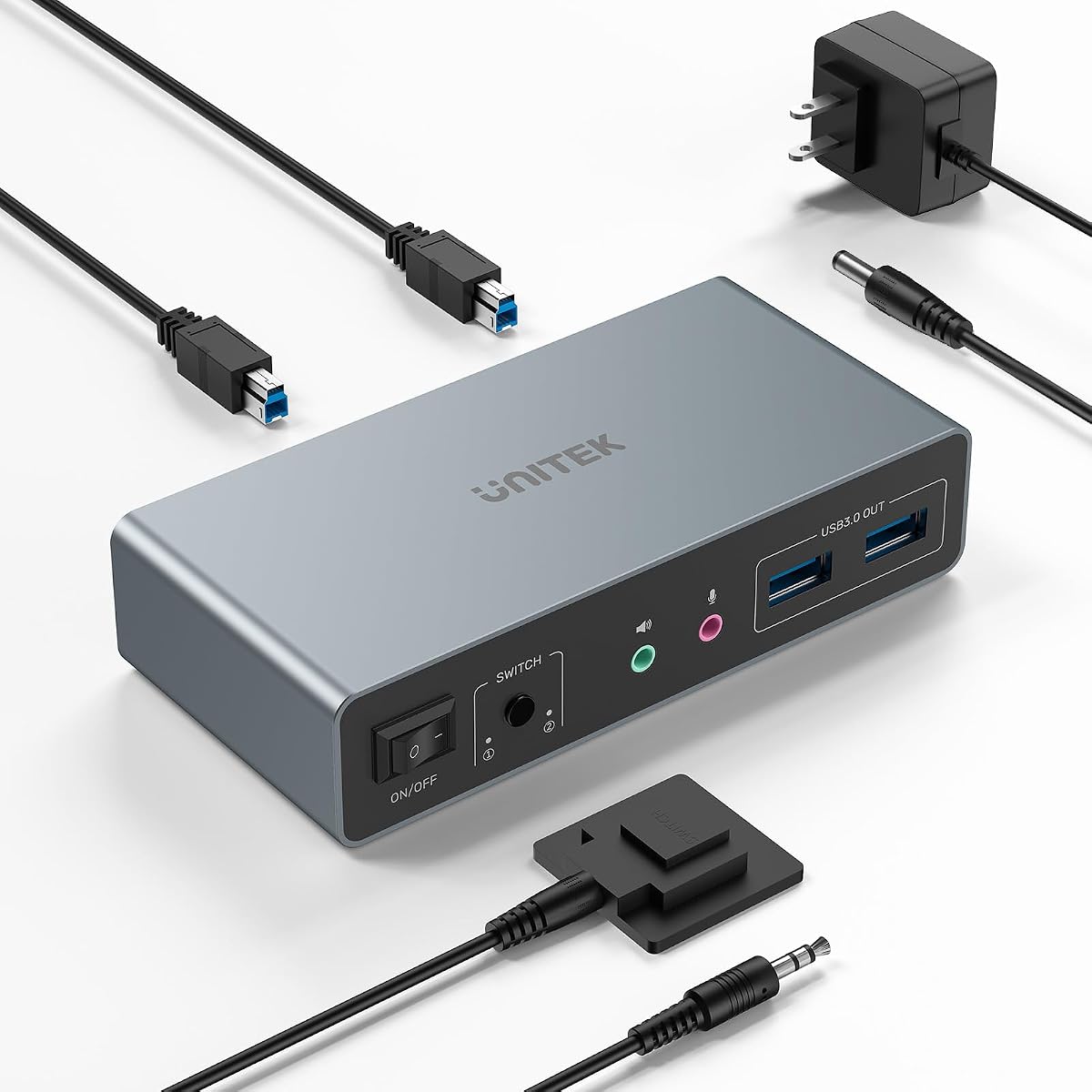
Unitek DP HDMI Dual Monitor KVM
4.5Editor score
Mixed HDMI and DisplayPort
Four USB-A 3.0 ports
Up to 4K at 60Hz
Desktop-only host requirement
Explore the best KVM Switch for 2 Computers and 2 Monitors, comparing video modes, resolution, USB sharing, switching, and compatibility.
A KVM switch for 2 computers and 2 monitors gives you one keyboard, one mouse, and a shared dual-display workspace without reconnecting cables every time you change systems. The right model should support your computer outputs, desired resolution, extended or mirrored displays, and peripherals such as printers, webcams, or external storage.
We compared the available switches by examining their connection types, maximum resolutions, display modes, USB hub capacity, switching controls, power arrangements, operating-system support, and installation requirements. The list includes HDMI, DisplayPort, and mixed-interface models, with particular attention to whether adapters, special cables, or desktop-only hosts are required.
Each pick below shows how the product fits a different kind of setup, from a straightforward 4K productivity station to an 8K-oriented creation desk and a DisplayPort-focused gaming configuration. Product listings, bundles, and availability can change, so confirm the current specifications and accessories before ordering.
4.5Editor score

4.7Editor score

4.2Editor score
The comparison below organizes all ten listings by video interface, display capability, USB sharing, and practical setup constraints, making it easier to identify the model that matches your computers and monitors.


This 8K HDMI KVM switch combines two computers, two HDMI monitors, and four shared USB 3.0 ports in one compact switching hub. Its listed 4.2 rating reflects a useful balance of high-resolution support, broad peripheral sharing, and straightforward physical controls. It is particularly compelling for users who want more display headroom than a basic 4K switch without moving to a model centered on high-refresh DisplayPort gaming.
We may earn a commission when you buy through this link, at no additional cost to you.
Video support extends to 8K at 60Hz and 4K at 120Hz, with backward compatibility for 4K at 60Hz, 1080p, and lower resolutions. Copy mode can present matching content on both screens, while extension mode can place different content on each display. The four USB 3.0 ports operate at up to 5Gbps and remain compatible with USB 2.0 peripherals, allowing a keyboard, mouse, printer, scanner, webcam, and other equipment to move with the selected computer.
There are important conditions. Each host computer needs two HDMI outputs, and it must support mirrored and extended desktop arrangements; a computer limited to one display cannot gain a second screen through the switch. The product uses panel buttons or its included wired controller rather than keyboard hotkeys. External 12V power is provided, which is important because host USB power alone may not adequately support demanding devices such as external hard drives.
This is a sensible pick for a productivity or content-creation desk where two powerful HDMI-equipped PCs need a shared peripheral set. It offers fewer USB ports than some alternatives but compensates with high-resolution capability and a useful wired controller. Buyers should confirm that their graphics outputs, cables, monitors, and operating systems meet the listed requirements before installation.
Copy mode is useful when both displays need to mirror the same desktop, while extension mode creates a larger working canvas across two independent screens. The switch does not create additional outputs; both computers must already be capable of driving two HDMI displays.
The USB hub keeps common accessories connected to the switch rather than requiring repeated reconnections. External 12V power improves stability when the shared set includes more demanding storage or powered accessories.
We may earn a commission when you buy through this link, at no additional cost to you.
This dual-monitor HDMI KVM is designed for users who want 8K-class video options, a four-port USB 3.0 hub, and quick source changes between two computers. It carries a 4.4 rating, placing it among the better-rated products in this comparison, and its feature set is well matched to Windows, Mac, Linux, and Unix workstations.
We may earn a commission when you buy through this link, at no additional cost to you.
The switch supports resolutions up to 8K at 60Hz and 4K at 120Hz. That makes it suitable for demanding graphics, editing, and general high-end desktop environments, provided the complete signal path supports the selected mode. Mirrored and extended arrangements are supported, allowing the same pair of monitors to serve as either duplicated presentation displays or separate work areas.
Four USB 3.0 ports provide up to 5Gbps transfer speeds and backward compatibility with USB 2.0 devices. A keyboard, mouse, printer, scanner, and webcam can remain attached to the switch as the active source changes. Physical switching is available through the onboard button and an included wired controller, but keyboard hotkeys are not supported.
The principal caveat is host readiness. Both computers need two HDMI outputs and support for mirrored and extended desktops. The product description also warns that passive adapters and standard conversion cables may not carry video through the switch; an active adapter may be necessary. That makes this a strong candidate for a properly equipped dual-HDMI desk, but a less convenient choice for mixed laptop-and-desktop arrangements.
Support for 8K at 60Hz and 4K at 120Hz provides flexibility for detailed work and smoother motion. Real-world results still depend on the graphics cards, monitor settings, and quality of every cable in the connection path.
The four-port USB 3.0 hub supports high-speed storage, cameras, scanners, and everyday input devices. The included 12V adapter is intended to provide steadier power than current supplied by the host computers.
We may earn a commission when you buy through this link, at no additional cost to you.
This DisplayPort KVM switch is the performance-oriented option in the group, with support for 4K at 144Hz, 8K at 60Hz, four USB 3.0 devices, and both extended and mirrored display arrangements. Its 4.4 rating indicates strong user reception, and the two-computer, two-monitor design is especially relevant to gaming and high-refresh productivity systems.
We may earn a commission when you buy through this link, at no additional cost to you.
Unlike the HDMI-focused models, it requires each computer to connect through two DisplayPort cables and one USB-A cable. The product's DP A and DP B monitor outputs must connect to the same computer, and adapter cables are not recommended. This direct native-interface approach may be preferable for users who already have a DisplayPort-oriented graphics setup and want to avoid conversion issues.
Video modes include 4K at 144Hz, 4K at 120Hz, 4K at 60Hz, 8K at 60Hz, 2K, and lower supported modes. Switching can be handled with the front Select button or an included wired desktop controller, allowing the main unit to sit away from the main work area. Hotkey switching is not available.
The package includes the switch, desktop controller, two USB 3.0 cables, a 12V power adapter, and a manual, but DisplayPort cables are not included. That limitation is worth accounting for if the host PCs do not already have suitable cables. Subject to those details, this is an appealing choice for gamers, motion-sensitive users, and creators with capable dual-DisplayPort systems.
A maximum 4K at 144Hz mode distinguishes this model from basic 60Hz KVM switches. Achieving it requires compatible graphics hardware, two suitable DisplayPort connections per computer, and displays capable of the target refresh rate.
The wired extension control lets the main switch be concealed while the control remains within reach. It provides a practical alternative to hotkey commands for users who prefer a physical selector.
We may earn a commission when you buy through this link, at no additional cost to you.
The supplied product record for ASIN B0DXF66SWR contains no usable title, description, rating, image, or specification data. Because of that limited information, it cannot be responsibly compared with the fully documented HDMI and DisplayPort switches in this roundup. A numerical rating of 0.0 is used only to satisfy the review structure and does not represent a customer score.
We may earn a commission when you buy through this link, at no additional cost to you.
Without stated video interfaces, resolution limits, USB port counts, or operating-system requirements, there is no reliable way to determine whether the product handles two computers and two monitors. It would be equally speculative to say whether it supports extended mode, EDID emulation, external power, or a desktop controller. Those omissions also make comparison with the other nine records impossible on a technical basis.
The main advantage of retaining this record is transparency. A direct product link and ASIN are available, so readers can inspect the current listing. However, the missing image and description also prevent a fair visual assessment, feature summary, accessory check, and compatibility analysis. Any purchase should be based on verified current listing information rather than the assumption that it resembles a neighboring model.
This entry should not be selected on the basis of the keyword alone. Before buying, confirm that the listing explicitly states support for two computer inputs, two monitor outputs, the required video standard, extended or mirrored operation, and compatible USB peripherals. If those details remain absent, a fully documented option from this guide is the safer and more transparent choice.
KVM switches vary substantially in signal architecture and host requirements. A listing that omits those details cannot be assumed to support the same cable arrangement, refresh rate, or display mode as a fully specified product.
The other entries in this guide provide clear information about HDMI or DisplayPort requirements, USB sharing, switching methods, and included components. Those details make them more dependable starting points when configuration compatibility is unknown.
We may earn a commission when you buy through this link, at no additional cost to you.
The GREATHTEK 8K HDMI KVM combines two computers and two displays with adaptive EDID, three USB 3.0 ports, and support for a broad range of refresh rates. Its 4.2 rating places it alongside the other well-rated HDMI models, while the stated 4K at 240Hz capability gives it a strong specification profile for high-performance and multi-purpose desks.
We may earn a commission when you buy through this link, at no additional cost to you.
The switch supports 8K at 60Hz and 8K at 30Hz, as well as 4K at 240Hz, 144Hz, and 120Hz, along with 2K, 3D, and 1080p modes. HDCP 2.3 support is also listed. To reach 8K at 60Hz, the product description specifically calls for high-quality HDMI 2.1 cables, making cable quality an important part of the installation.
Adaptive EDID is intended to keep display parameters stable and reduce freezing or distortion as the selected input changes. The switch can be operated through a panel button or a wired desktop keypad, and it does not support hotkey commands. Three USB 3.0 ports offer up to 5Gbps for shared devices such as a keyboard, mouse, flash drive, or camera.
Its plug-and-play approach and compatibility with Windows, Mac, and Linux make it approachable. The package includes two USB 3.0 cables, a wired desktop keypad, a USB-C power cable, and a manual. This switch is a good fit for a user who values refresh-rate options and EDID behavior, although those seeking four shared USB ports should choose one of the four-port alternatives.
Support for several 4K refresh rates and 8K at 60Hz makes the switch adaptable to gaming, productivity, and creative displays. Each target mode still requires compatible source hardware, monitors, and suitable HDMI 2.1 cabling.
Adaptive EDID is intended to preserve display settings and reduce disruption during source changes. Operating-system and graphics-card behavior can still influence how applications reposition their windows.
We may earn a commission when you buy through this link, at no additional cost to you.
This Greathek dual-monitor KVM is a straightforward 4K option for two computers, two HDMI monitors, and a shared set of USB peripherals. It has a 4.2 rating and emphasizes the features most often needed in offices, home workspaces, programming desks, and financial-analysis stations: extended and duplicate modes, 4K at 60Hz, and a three-port USB 3.0 hub.
We may earn a commission when you buy through this link, at no additional cost to you.
Video support reaches 3840 by 2160 at 60Hz through HDMI 2.0, with backward compatibility for 1080p and lower resolutions. The stated bandwidth is up to 18Gbps, and HDCP 2.2 is supported. To achieve the maximum listed mode, the computers, graphics cards, monitors, and every HDMI cable in the path must all support 4K at 60Hz.
Three shared USB 3.0 ports can serve a keyboard, mouse, printer, webcam, scanner, flash drive, or external storage. Their theoretical transfer speed is up to 5Gbps. EDID emulation is intended to help computers retain display identification and configurations, reducing reconnection and window rearrangement when switching, although actual behavior may vary by operating system, graphics card, and application.
The switch is operated with its front button or included wired desktop controller, and hotkey switching is not supported. A notable omission is the 5V power adapter: the product has an independent power input, but the adapter is not included. This model is best for buyers who want an uncomplicated 4K productivity switch and already have suitable power and video cabling.
Extended mode allows different content to appear on each monitor, which is useful for research, communication, and multitasking. Duplicate mode provides matching output for presentations or shared demonstrations.
EDID emulation can help preserve display identity and resolution when the source changes. It reduces disruption, although software and graphics drivers ultimately determine how windows are arranged.
We may earn a commission when you buy through this link, at no additional cost to you.
The Unitek DP HDMI KVM stands out for combining HDMI and DisplayPort in a two-computer, two-monitor arrangement while offering four USB-A 3.0 ports. Its 4.5 rating is the second-highest among the fully documented listings, and the included controller, USB A-to-B cables, and 5V 2A power adapter create a comparatively complete desktop installation package.
We may earn a commission when you buy through this link, at no additional cost to you.
Video modes include 4K at 60Hz, 2K, 3D, and 1080p. The switch supports HDMI 2.0, HDCP 2.2 and 1.4, USB 2.0, USB 3.0, 3D, and HDR. Its mixed interfaces can be useful when a desktop has one HDMI output and one DisplayPort output, allowing the same two displays to be reached without standardizing on a single connector type.
Four USB-A ports share keyboards, mice, flash drives, printers, and mobile hard drives, with transfer rates up to 5Gbps on USB 3.0 connections. A microphone and headset port adds another useful function. The source can be changed through a one-button switch or the wired desktop controller, and the main unit can be kept out of sight.
The most important limitation is explicit: this model is not compatible with laptops and is intended for desktop hosts. To use both HDMI and DisplayPort simultaneously, each host needs the required video cables and a USB A-to-B connection. For a fixed dual-desktop installation with mixed outputs, that is a reasonable trade-off and makes this one of the strongest premium choices in the guide.
Different connector types on the two host computers do not automatically prevent a shared display setup. This model is suited to desktops whose graphics cards expose one DisplayPort output and one HDMI output.
Four USB-A 3.0 ports, a dedicated headset connection, and included host cables cover many shared accessories. The supplied power adapter helps maintain stable operation when several devices are attached.
We may earn a commission when you buy through this link, at no additional cost to you.
This Unitek DisplayPort KVM offers a less conventional but potentially tidier approach to controlling two computers with two monitors. Rather than requiring two separate video outputs from each computer, it uses one DisplayPort connection per host to reach both displays. It has a 4.4 rating, 4K at 60Hz support, and a compact aluminum enclosure measuring 5.71 by 2.4 inches.
We may earn a commission when you buy through this link, at no additional cost to you.
The single DisplayPort connection can support extended and mirrored arrangements, depending on the host computer, source hardware, and DisplayPort capabilities. Video support extends to 4K at 60Hz and is backward compatible with 2K and 1080p. This design may reduce cable clutter when a computer's graphics system supports dual-monitor output over one DisplayPort connection.
Peripheral sharing is handled by one USB-C port and three USB-A 3.0 ports, all operating at up to 5Gbps according to the description. Keyboards, mice, storage, printers, webcams, and USB audio devices are among the supported accessories. Source selection is available from a front button or a wired remote, without software or driver installation.
Two restrictions are especially important. The product does not support HDMI input, and it is not compatible with laptops. Its stated host use is therefore narrow compared with several HDMI alternatives. It makes the most sense for a desk built around compatible desktop PCs and DisplayPort displays, especially where a compact enclosure and fewer source-side video cables are priorities.
Using one DisplayPort output per computer can reduce desktop clutter. This architecture depends on the source hardware supporting the required dual-display arrangement through that connection.
The 5.71 by 2.4-inch aluminum housing is smaller than many traditional two-in, two-out models. Its aluminum construction is also intended to assist with heat dissipation during extended use.
We may earn a commission when you buy through this link, at no additional cost to you.
The Ouluoa dual-monitor KVM has the highest listed rating in this comparison at 4.7, making it the most broadly appealing choice in the roundup. It combines two computers, two 4K HDMI displays, four shared USB 3.0 ports, extended and mirror modes, EDID copy functionality, and a wired controller in a straightforward package.
We may earn a commission when you buy through this link, at no additional cost to you.
Maximum video resolution is 3840 by 2160 at 60Hz, with backward compatibility for 4K at 30Hz, 1080p, and lower modes. This makes it well suited to offices, professional multi-computer desks, and home offices where clear 4K output and reliable switching matter more than extreme refresh rates. The EDID copy feature is intended to help keep desktop windows from rearranging when the active source changes.
Four integrated USB 3.0 ports deliver up to 5Gbps for shared flash drives, printers, webcams, and other peripherals. A front-panel button or included wired desktop remote controls the active computer. The switch works with Windows, macOS, and Linux without complicated drivers, and the included 12V supply is designed to support stable signal transmission while using power-hungry external drives.
The package includes the KVM, two USB 3.0 cables, the power adapter, the wired remote, and a one-year manufacturer warranty. Its trade-off is that 4K is limited to 60Hz, so high-refresh gaming or demanding motion workflows may be better served by the DisplayPort-focused option. For general dual-PC productivity, however, its feature balance and rating make it the strongest overall recommendation.
The smart EDID copy feature is intended to preserve monitor identification and desktop layout during source changes. This is especially useful in mixed Windows, macOS, and Linux workspaces where applications may otherwise reopen on different screens.
Four USB 3.0 ports, two host cables, a wired remote, and an external 12V supply provide a practical foundation for a shared desk. Additional HDMI cables may be required according to the existing computer and monitor setup.
We may earn a commission when you buy through this link, at no additional cost to you.
This 8K HDMI KVM pairs two computers and two monitors with a four-port USB 3.0 hub, physical switching controls, and an included braided 8K HDMI cable. Its 4.1 rating is the lowest of the rated products in the group, but the underlying feature set is competitive with higher-rated alternatives and could be especially convenient for a new installation.
We may earn a commission when you buy through this link, at no additional cost to you.
The switch supports 8K at 60Hz and 4K at 120Hz, along with mirror and extend modes for a shared dual-screen setup. Windows, Mac, and Linux compatibility is listed, and no drivers or software are required. Users can select a source through the front button or the included wired remote, providing a simple alternative to hotkey commands.
Four USB 3.0 ports operate at up to 5Gbps, and the hub also advertises smart charging with BC 1.2, Apple, and Samsung protocol support. The product is powered by a 5V 2A adapter, which is intended to maintain consistent performance when several peripherals are connected. The included Genesys Logic GL3510 chipset forms the stated hub foundation.
A metal housing supports durability and heat management, while the bundled braided HDMI cable reduces the need to purchase an immediate accessory. The key caveat is that charging behavior varies by attached device and protocol, and actual display performance depends on the full source-to-monitor signal chain. This is a practical high-resolution bundle for users who value the included cable and a four-port hub.
A braided 8K HDMI cable simplifies a fresh setup by providing one high-quality display connection out of the box. Additional cables may still be needed for the second computer, second monitor, or a different connector layout.
The 5V 2A supply and four USB 3.0 ports support a shared collection of input devices and storage accessories. Charging output for phones and tablets is tied to each device's supported protocol.
We may earn a commission when you buy through this link, at no additional cost to you.
The best KVM switch is determined less by headline resolution than by matching your actual computer outputs, monitor standards, peripheral set, and switching preferences. Review the following factors before choosing a model.
Start by inspecting the ports on each computer or laptop. Most conventional two-monitor KVM switches require two separate video outputs per host: two HDMI connections, two DisplayPort connections, or a combination of both. A laptop with only one full-size video output may require a different architecture, such as the single-DisplayPort-per-host design in the Unitek DisplayPort model, although that product is not listed as laptop compatible. Do not assume that a KVM can create a second output from a single port. Its advertised two-monitor capability is conditional on the host being able to drive two displays independently.
HDMI and DisplayPort are not interchangeable in every setup, and the correct interface should follow the native outputs of your computers and inputs of your monitors. HDMI models dominate the list and offer broad compatibility with mainstream graphics cards, TVs, and monitors. DisplayPort is attractive for high-refresh gaming and professional displays, while the mixed Unitek design can accommodate one HDMI and one DisplayPort output from each desktop. Check the physical connectors and supported standards before buying rather than relying on an adapter label.
Maximum resolution is only useful when the entire chain can support it. For 8K at 60Hz, the source graphics output, KVM switch, cable, and monitor must all meet the relevant HDMI or DisplayPort requirements. For 4K at 144Hz, the DisplayPort-focused model offers the clearest stated high-refresh match, while several HDMI switches support 4K at 120Hz or 240Hz. The Greathek option stops at 4K at 60Hz. Consider both pixel resolution and refresh rate: a sharp 4K image at 60Hz may be more appropriate for office work than a demanding mode that the host cannot consistently drive.
Extended mode lets each monitor display different content, creating a larger desktop and allowing applications to move between screens. Mirror or copy mode duplicates the same image on both displays, which is useful for presentations, demonstrations, and some workflows that need identical output. Most switches in this guide support both arrangements, but the host operating system, graphics driver, and display configuration still matter. Confirm that both computers are configured for mirrored and extended desktops when using a switch that supports both.
Count the peripherals that must move with the selected computer. A keyboard and mouse require at least two shared USB connections, while printers, webcams, scanners, headsets, and storage devices can quickly occupy the remaining ports. Four-port models offer the most flexibility, but three-port switches are adequate for leaner desks. USB 3.0 is appropriate for external storage, webcams, and other data-intensive devices, with listed speeds up to 5Gbps. USB 2.0 devices remain compatible in the models that explicitly support backward compatibility.
A dedicated power supply can make a meaningful difference when the switch drives external hard drives, powered hubs, webcams, or several peripherals at once. Host USB ports often cannot provide enough current for every connected device. Many products in this roundup include a 12V adapter, while the Greathek 4K model uses an independent 5V input but does not include a 5V adapter. The Unitek DP HDMI model includes a 5V 2A supply. Check the package contents before ordering and make sure the correct power source is available.
Most models offer a front-panel button and a wired desktop controller, allowing the main unit to be placed out of sight. Keyboard hotkeys are not supported by any of the fully documented products in this guide, so buyers who rely on hotkeys should not expect that behavior. EDID emulation or copying can help computers retain display identity, resolution, and window placement when the source changes. This is valuable in mixed operating-system environments, although it cannot guarantee identical application-window behavior across every driver and application.
Package contents can materially affect installation. The Ouluoa includes two USB 3.0 cables, a power adapter, a remote, and a warranty. The GREATHTEK includes USB cables, a wired keypad, and a power cable. The rank-three DisplayPort model includes USB and power accessories but not DisplayPort cables. The Unitek DisplayPort product has a compact metal housing and four USB connections but excludes laptops and HDMI input. Count the video, USB, and power cables already in your possession so you do not encounter an incomplete setup immediately after delivery.
Begin by fully disconnecting the setup and identifying the video outputs on both computers. Connect each host to the switch using the required native video cables, then attach the two monitors to the switch's output ports. Make sure both outputs for a computer go to the same host, because mixing DP A and DP B connections between different computers can produce unexpected results. Connect the shared keyboard, mouse, and any USB storage or peripherals to the USB hub before powering the system.
Apply the correct external power adapter and wait for the switch to initialize. Select a source with the front button or wired controller, then configure the selected computer for either extended or mirrored display output. In Windows, macOS, or Linux, use the operating system's display settings to select the proper arrangement and resolution. If an image is missing, confirm that the monitor input matches the KVM output, that the source supports the selected refresh rate, and that every required cable is present.
For care, keep the unit ventilated and avoid stacking it beneath heavy equipment or enclosed areas where heat can accumulate. Connect external hard drives directly to their host before changing sources if data transfers are underway, and use the switch's external power for storage that requires more current than a host port can provide. Update graphics and monitor firmware when needed, use quality cables for high-resolution modes, and periodically inspect connectors for dust or loose connections. Always switch sources cleanly rather than unplugging a display cable while it is actively carrying a signal.
Yes, if each computer can output the required display signals and the switch has matching inputs and outputs. Most models here require two HDMI outputs per computer, while the DisplayPort options use different arrangements. A computer with only one video output cannot necessarily create a second independent display through the KVM. Check the host requirements and monitor interfaces before buying.
Extended mode sends different content to each monitor, creating one larger virtual desktop. Mirror or copy mode sends the same content to both displays. Extended mode is useful for productivity and multitasking, while mirroring is convenient for presentations and shared viewing. Both source computers must support the required arrangement, and the operating system must be configured correctly.
Several HDMI models describe compatibility with laptops, but the Unitek DP HDMI product explicitly excludes them and the compact Unitek DisplayPort product also states that laptop use is not supported. Laptop support is more complex than connector shape because some notebooks offer only one video output or require an active adapter. Confirm the complete host requirements rather than relying on the broad term laptop compatible.
A dedicated adapter is advisable when sharing hard drives, powered hubs, webcams, or several peripherals. Most listed products include external power, although the Greathek 4K model has a 5V power input but does not include a 5V adapter. The Unitek DP HDMI package includes a 5V 2A adapter. Use the specified supply to avoid unstable USB operation.
That depends on the switch and the adapter. The 8K HDMI USB 3.0 switch states that passive adapters or standard conversion cables may not carry video and that an active adapter is needed. The DisplayPort-focused product discourages adapter cables. Native cables matching the required standard are the most reliable approach, especially for 8K or high-refresh modes.
No. The switch, source computer, graphics output, every cable, and both monitors must support the desired mode. The GREATHTEK model specifically recommends high-quality HDMI 2.1 cables for 8K at 60Hz. Monitor brands and model numbers alone do not guarantee that the full chain can maintain the maximum listed resolution and refresh rate.
EDID emulation or copying is designed to reduce this problem, but operating systems, graphics drivers, applications, and each computer's native display settings can still produce different layouts. Configure both systems to use identical monitor positions and resolution settings. If the issue persists, update the graphics driver and confirm that the switch supports the selected display modes.
The fully documented products in this guide do not support hotkey switching. They provide physical front-panel buttons, wired desktop controllers, or wired keypads instead. This is actually beneficial for some users because a specific key combination cannot accidentally trigger a source change while typing. Plan to use the included physical control during normal operation.
The Ouluoa 4K HDMI KVM is the strongest all-around recommendation because it combines the highest listed rating with four USB 3.0 ports, EDID copy support, a wired controller, external power, and broad operating-system compatibility. The Unitek DP HDMI KVM is the premium mixed-interface alternative for compatible desktop hosts, while the rank-one 8K HDMI model provides a strong feature set for users who want 8K and 4K at 120Hz support.
Your priority should be compatibility before maximum specifications. Check the exact outputs on both computers, the inputs on both monitors, the required display mode, and the peripherals you need to share. A 4K at 60Hz switch with four USB ports may serve a productivity setup better than a higher-refresh model that forces adapter use or lacks the necessary host connections.
Before ordering, review the current product page for the exact package contents, supported resolutions, power requirements, and warranty details. Product configurations and availability can change, so the latest listing should be treated as the final source of truth. With the correct host and display arrangement, any well-matched choice in this guide can substantially reduce cable clutter and daily switching effort.